# How to obtain your License?
To run your solutions as assets on hardware, a valid **hardware license** is required. Without this license, system limitations such as watermarks and runtime restrictions will apply.
Before activating your hardware, ensure that the system is correctly set up according to the [**Target Setup Guide**](https://doc3161en.candera.eu/books/target-setup-for-community-edition-raspberry-pi/page/target-setup-and-first-steps), up to the section **“Activate License”**.
**Steps to Obtain Your License File:**
- Visit the [Candera Community Forum](https://community.candera.eu/).
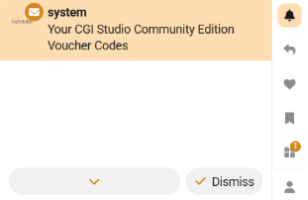
- Sign up to the Candera Community Forum. You will receive a system notification granting access to **three license vouchers**.
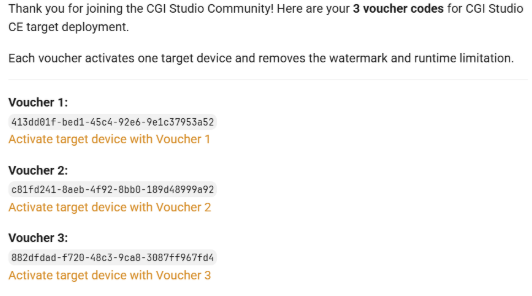
- Open the notification. It will contain the following message:
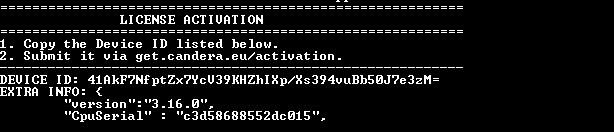
- Before obtaining your license, you must retrieve the **Device ID** of your RaspberryPi device. Ensure that the [Candera Debian package](https://doc3161en.candera.eu/link/1405#bkmrk-install-deb-package-) is installed on the device before performing this step.
```
/opt/candera/bin/Player
```
You should see the the Device ID in the console log:
- For a voucher, select the corresponding activation link (e.g., **“Activate target device with Voucher 1”**).
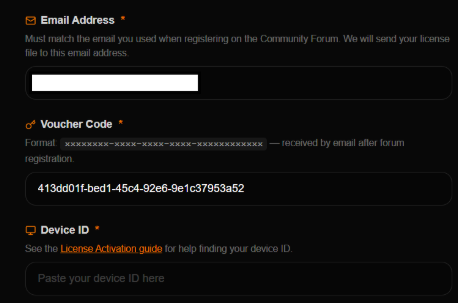
You will be redirected to the activation page.
- After submitting the Device ID and completing the voucher activation process, you will receive an email containing your **hardware license file (.lic)**.
- Copy the license file to the same directory as the Player on the target device.
```
/opt/candera/bin/License.lic
```
Moving the license file to a different location prevents the license from being activated on the target.
If the license file is not named **License.lic**, please rename it. CGI Studio is now activated on your target device.
If you don't have permission to copy the license file, grant it by running *sudo chmod* 777 */opt/candera/bin* on the device.
Please continue with our [Target Setup Guide](https://doc3161en.candera.eu/link/1405#bkmrk-page-title) to run your first assets on the target and familiarize yourself with CGI Studio.