# glTF Files

This section provides additional information on the use of glTF files in Scene Composer.

<div class="contents" id="bkmrk--4"><div class="contents">  
</div></div>#### Animations

Scene Composer provides a working sample that shows how to use glTF animations. See <span style="color: rgb(230, 126, 35);">[Physically Based Rendering Solution](https://doc3161en.candera.eu/books/sample-solutions/page/physically-based-rendering-solution "Physically Based Rendering Solution")<span style="color: rgb(0, 0, 0);"> for details.</span></span>

Scene Composer supports interpolation animation; however, morphing or the channel path "weights" are not supported.

The following animation types are supported:

<div class="contents" id="bkmrk-translation-rotation"><div class="contents"><div class="textblock">

- translation
- rotation
- scale.

</div></div></div>The following interpolation strategies are supported:

<div class="contents" id="bkmrk-linear-step-cubicspl"><div class="contents"><div class="contents"><div class="textblock">

- linear
- step
- cubicspline

</div></div></div></div><p class="callout info">glTF specifies rotation angles in quaternions. CGIStudio converts the values to Euler angles.  
</p>

For more information about animations, see <span style="color: rgb(230, 126, 35);">[the Khronos website: animations](https://github.com/KhronosGroup/glTF/tree/master/specification/2.0#animations)</span>. For a more detailed description about interpolation types see <span style="color: rgb(230, 126, 35);">[the Khronos website: animation sampler](https://github.com/KhronosGroup/glTF/tree/master/specification/2.0#reference-animation-sampler)</span>.

<div class="contents" id="bkmrk--15"><div class="contents"><div class="textblock">  
</div></div></div>---

#### The Software Development Kit (SDK) version

The glTF importer uses the Microsoft glTF-SDK in version v1.9.1.0. Download the Microsoft glTF-SDK from <span style="color: rgb(230, 126, 35);">[Microsoft gtTF-SDK GitHub repository](https://github.com/microsoft/glTF-SDK)</span>.

<div class="contents" id="bkmrk--17"><div class="contents"><div class="textblock">  
</div></div></div>---

#### Reference models

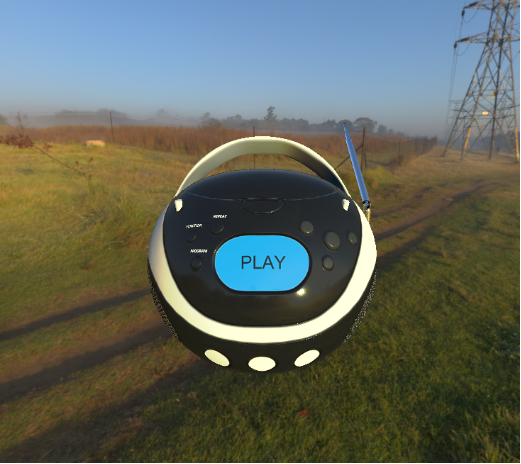
Scene Composer uses the boombox as a reference model. The folder `cgi_studio_content/3D/glTF/ `contains the glTF file. Visit [<span style="color: rgb(230, 126, 35);">The Khronos website: glTF Sample Models</span>](https://github.com/KhronosGroup/glTF-Sample-Models) to find more available reference models.

<div class="contents" id="bkmrk--19"><div class="contents"><div class="contents"><div class="textblock"><div drawio-diagram="291"><img src="https://doc3161en.candera.eu/uploads/images/drawio/2023-02/drawing-4-1676342296.png" alt=""/></div>

</div><div class="textblock">  
</div></div></div></div>#### Supported glTF Extensions and Multi UV

Scene Composer’s glTF import supports the following glTF 2.0 extensions as well as multiple UV sets (Multi UV).

<table border="1" id="bkmrk-khr_lights_punctual-" style="border-collapse: collapse; width: 800px; height: 555.818px; border-width: 0px;"><colgroup><col style="width: 239px;"></col><col style="width: 561px;"></col></colgroup><tbody><tr style="height: 29.5227px;"><td style="background-color: rgb(53, 152, 219); height: 29.5227px;"><span style="color: rgb(236, 240, 241);">**Extension**</span></td><td style="background-color: rgb(53, 152, 219); height: 29.5227px;"><span style="color: rgb(236, 240, 241);">**Description**</span></td></tr><tr style="height: 46.3182px;"><td style="height: 46.3182px;">KHR\_lights\_punctual</td><td style="height: 46.3182px;">Imports point, spot, and directional lights defined in the glTF file as lights in Scene Composer.</td></tr><tr style="height: 29.5227px;"><td style="height: 29.5227px;">KHR\_materials\_anisotropy</td><td style="height: 29.5227px;">Reproduce materials with anisotropic highlights, such as brushed metal.</td></tr><tr style="height: 29.5227px;"><td style="height: 29.5227px;">KHR\_materials\_clearcoat</td><td style="height: 29.5227px;">Reproduces materials that have a clear-coat layer (clear paint).</td></tr><tr style="height: 46.3182px;"><td style="height: 46.3182px;">KHR\_materials\_ior</td><td style="height: 46.3182px;">Specifies the *Index of Refraction* (IOR) and improves refraction for materials such as glass.</td></tr><tr style="height: 46.3182px;"><td style="height: 46.3182px;">KHR\_materials\_iridescence</td><td style="height: 46.3182px;">Represents iridescence effects where the color changes depending on the viewing and incident angles.</td></tr><tr style="height: 46.3182px;"><td style="height: 46.3182px;">KHR\_materials\_specular

</td><td style="height: 46.3182px;">Supports materials that independently control the intensity and color of specular reflection.</td></tr><tr style="height: 46.3182px;"><td style="height: 46.3182px;">KHR\_materials\_unlit</td><td style="height: 46.3182px; border-width: 0px;">Supports “unlit” materials that are not affected by lighting calculations.

</td></tr><tr style="height: 46.3182px;"><td style="height: 46.3182px;">KHR\_texture\_transform</td><td style="height: 46.3182px;">Interprets UV transforms such as offset, scale, and rotation per texture.

</td></tr><tr style="height: 79.9091px;"><td style="height: 79.9091px;">KHR\_materials\_emissive\_strength</td><td style="height: 79.9091px;">This extension scales the emissive color or texture by a scalar *emissiveStrength* factor, allowing materials to represent much brighter emission, especially in *high dynamic range* (HDR) rendering environments.

</td></tr><tr style="height: 79.9091px;"><td style="height: 79.9091px;">KHR\_materials\_sheen</td><td style="height: 79.9091px;">This extension adds a sheen layer on top of an existing *physically based rendening* (PBR) material to simulate soft, fabric-like highlights caused by fine microfibers such as cloth or velvet.

</td></tr><tr style="height: 29.5227px;"><td style="height: 29.6px;">KHR\_materials\_dispersion</td><td style="height: 29.5227px;">Represents the dispersion of light caused by differences in the index of refraction per wavelength.

</td></tr><tr><td style="height: 29.6px;">KHR\_materials\_transmission</td><td>Represents the transmission of light and reproduces transparent materials such as glass.

</td></tr><tr><td style="height: 14.4px;">KHR\_materials\_volume</td><td>Represents the attenuation of light inside a transmissive material (thickness, attenuation color, and attenuation distance).

</td></tr></tbody></table>

Even when UV sets other than `uv0` are specified in these extensions, Scene Composer imports multiple UV sets (Multi UV) and assigns them to the corresponding textures.

When you import a glTF file with **Import Dynamic Appearance** enabled, Scene Composer displays the properties that correspond to the extensions in the preceding table as GltfAppearance properties in the Properties panel, and you can edit them there. For the individual properties, see <span style="color: rgb(230, 126, 35);">[**Properties Overview**](https://doc3161en.candera.eu/books/appendix/page/properties-overview)</span>.

##### Limitations

- Limitations in OpenGL Embedded Systems (ES) 2.0 might prevent some sample glTF files that use these extensions from producing the expected visual results in ES 2.0 environments.
    
    
    - KHR\_materials\_transmission: Scene Composer does not apply the transmission effect and renders the material as an opaque material.
    - KHR\_materials\_volume: Scene Composer applies only transmission and does not render the absorption of light.
    - KHR\_materials\_dispersion: Scene Composer applies only transmission and does not render dispersion.
- By design, you cannot use some combinations of extensions together. For details, check the **glTF 2.0 extension specifications** provided by Khronos.
    
    
    - For example, by design you cannot use some extensions, such as KHR\_materials\_anisotropy, KHR\_materials\_iridescence, KHR\_materials\_specular, KHR\_materials\_ior, KHR\_materials\_emissive\_strength, and KHR\_materials\_sheen, together with KHR\_materials\_unlit.
- Meshes that use **KHR\_materials\_anisotropy** must have normal and tangent attributes, or the base material must have a normal map. If these conditions are not met, the anisotropy effect may not be rendered correctly.
- KHR\_materials\_volume and KHR\_materials\_dispersion require KHR\_materials\_transmission. When you import a glTF file that does not use KHR\_materials\_transmission, Scene Composer ignores these properties.

For details on the properties and parameters of each extension, refer to the <span style="color: rgb(230, 126, 35);">[glTF 2.0 extension specifications](https://github.com/KhronosGroup/glTF/tree/main/extensions/2.0/Khronos) </span>provided by Khronos.

For the behavior when you import a glTF file that uses KHR\_materials\_transmission, see <span style="color: rgb(230, 126, 35);">[**Importing Transmissive Materials**](#bkmrk-importing-transmissi)</span>.

---

#### Physically Based Shading (PBS)

This section describes the shader and appearance configuration that Scene Composer creates when you import a glTF file with a static Appearance. For the individual properties that apply when you import with a dynamic GltfAppearance, see <span style="color: rgb(230, 126, 35);">[**Properties Overview**](https://doc3161en.candera.eu/books/appendix/page/properties-overview)</span>.

The importer applies the metal-roughness material model to the imported 3d model. If the glTF file does not define image-based lightning (IBL) textures, the importer applies a default material. Scene Composer provides shaders for OpenGL ES 2.0 and 3.0.

The property names used in SceneComposer differ from the glTF standard:

<table border="1" id="bkmrk-standard-property-na" style="border-collapse: collapse; width: 76.1905%;"><colgroup><col style="width: 28.9341%;"></col><col style="width: 71.1702%;"></col></colgroup><tbody><tr><td style="background-color: rgb(53, 152, 219);"><span style="color: rgb(236, 240, 241);">**Standard Property Name**</span></td><td style="background-color: rgb(53, 152, 219);"><span style="color: rgb(236, 240, 241);">**Usage in SceneComposer**</span></td></tr><tr><td>baseColor</td><td>u\_Base Color Factor</td></tr><tr><td>metallic</td><td>determined by the X value in the u\_Metallic Roughness Value</td></tr><tr><td>roughness</td><td>determined by the Y value in the</td></tr></tbody></table>

<div class="contents" id="bkmrk-the-standard-propert"><div class="contents"><div class="textblock">  
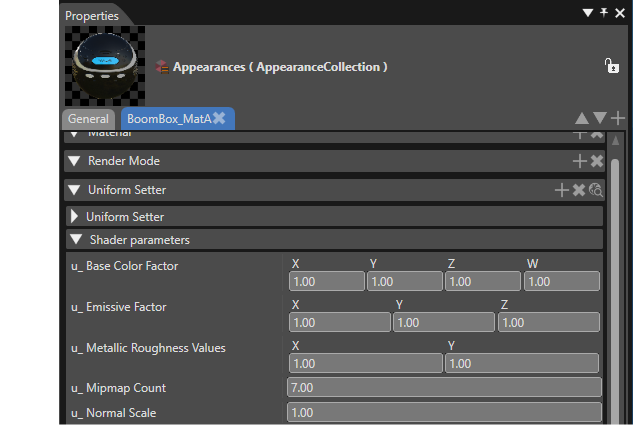
</div></div></div>The importer automatically sets the following appearance and shader properties, but you can also configure them manually:

##### Uniforms:

<table border="1" id="bkmrk-optional-uniform-nam" style="border-collapse: collapse; width: 100%;"><colgroup><col style="width: 9.29235%;"></col><col style="width: 22.2797%;"></col><col style="width: 68.3863%;"></col></colgroup><tbody><tr><td style="background-color: rgb(53, 152, 219);"><span style="color: rgb(236, 240, 241);">**Optional**</span></td><td style="background-color: rgb(53, 152, 219);"><span style="color: rgb(236, 240, 241);">**Uniform Name**</span></td><td style="background-color: rgb(53, 152, 219);"><span style="color: rgb(236, 240, 241);">**Description**</span></td></tr><tr><td>  
</td><td>u\_MetallicRoughnessValues</td><td>holds the metallic factor in X and the roughness factor in Y. The shader multiplies these values with the metallic and roughness values from the metallic-roughness texture on a per-pixel basis. If no such texture exists, the shader uses the values from the uniform instead.</td></tr><tr><td>  
</td><td>u\_BaseColorFactor</td><td>is a factor that the shader multiplies with the value from the albedo texture on a per-pixel basis. If no such texture exists, the shader uses the values from the uniform instead.</td></tr><tr><td>  
</td><td>u\_MipmapCount</td><td>specifies the number of mipmaps, excluding level 0, from the specular/radiance texture.</td></tr><tr><td>optional</td><td>u\_NormalScale</td><td>is a factor that the shader multiplies with the X and Y component of the normal. This uniform is available only if the fragment shader and vertex shader define <code>HAS&#95;NORMALMAP</code>.</td></tr><tr><td>optional</td><td>u\_OcclusionStrength</td><td>is a factor for the linear interpolation between the color and the color times ambient occlusion. This uniform is available only if the fragment shader and the vertex shader define <code>HAS&#95;OCLUSIONMAP</code>*.*</td></tr><tr><td>optional</td><td>u\_EmissiveFactor</td><td>is a factor that the shader multiplies with the value from the emissive texture on a per-pixel basis. This uniform is available only if the fragment shader and the vertex shader define <code>HAS&#95;EMISSIVEMAP</code></td></tr></tbody></table>

<div drawio-diagram="6818"><img src="https://doc3161en.candera.eu/uploads/images/drawio/2024-09/drawing-5-1726241135.png" alt=""/></div>

#####  Textures:

<table border="1" id="bkmrk-optional-texture-nam" style="border-collapse: collapse; width: 100%;"><colgroup><col style="width: 9.29309%;"></col><col style="width: 15.0119%;"></col><col style="width: 9.41261%;"></col><col style="width: 8.22043%;"></col><col style="width: 58.0222%;"></col></colgroup><tbody><tr><td style="background-color: rgb(53, 152, 219);"><span style="color: rgb(236, 240, 241);">**Optional**</span></td><td style="background-color: rgb(53, 152, 219);"><span style="color: rgb(236, 240, 241);">**Texture Name**</span></td><td style="background-color: rgb(53, 152, 219);"><span style="color: rgb(236, 240, 241);">**Channels**</span></td><td style="background-color: rgb(53, 152, 219);"><span style="color: rgb(236, 240, 241);">**Texture Level**</span></td><td style="background-color: rgb(53, 152, 219);"><span style="color: rgb(236, 240, 241);">**Description**</span></td></tr><tr><td>optional</td><td>albedo </td><td>RGBA</td><td>0</td><td>Set at texture unit 0, and define <code>HAS&#95;BASECOLORMAP </code>in the fragment shader.</td></tr><tr><td>optional</td><td>metallic-roughness </td><td>GB</td><td>1</td><td>Set at texture unit 1, and define <code>HAS&#95;METALROUGHNESSMAP </code>in the fragment shader. The metallic values must be stored in the blue channel. The roughness value must be stored in the green channel of the texture.</td></tr><tr><td>optional</td><td>tangent-space normal</td><td>RGB</td><td>2</td><td>Set at texture unit 2, and define <code>HAS&#95;NORMALMAP </code>in the fragment shader and vertex shader.</td></tr><tr><td>optional</td><td>occlusion</td><td>R</td><td>3</td><td>Set at texture unit 3, and define <code>HAS&#95;OCCLUSIONMAP </code>in the fragment shader and vertex shader. The occlusion values are stored in the red channel of the texture.</td></tr><tr><td>optional</td><td>emissive</td><td>RGB</td><td>4</td><td>Set at texture unit 4, and define <code>HAS&#95;EMISSIVEMAP </code>in the fragment shader and the vertex shader.</td></tr><tr><td>optional</td><td>Image-based lighting (IBL)</td><td>  
</td><td> </td><td>Provide the following textures for IBL to work correctly:

- diffuse radiance cubemap (see below)
- specular/radiance cubemap (see below)
- bidirectional reflectance distribution function (BRDF) (see below)

</td></tr><tr><td>optional</td><td>IBL - diffuse radiance cubemap</td><td>RGB</td><td>5</td><td>Set at texture unit 5, and define <code>USE&#95;IBL </code>in the fragment shader.

</td></tr><tr><td>optional</td><td>IBL - specular/radiance cubemap</td><td>RGB</td><td>6</td><td>Set at texture unit 6, and define USE\_IBL in the fragment shader. Build the specular pre-convolved environment into the mipmaps. The importer automatically sets the number of mipmaps, excluding level 0, in the shader uniform *u\_MipmapCount*. If you set this cubemap manually, configure this value manually.

</td></tr><tr><td>optional</td><td>IBL - bidirectional reflectance distribution function (BRDF)</td><td>RG</td><td>7</td><td>Set at texture unit 7, and define <code>USE&#95;IBL </code>in the fragment shader.

</td></tr></tbody></table>

<div class="contents" id="bkmrk-%28optional%29-the-albed"><div class="contents"><div class="textblock">  
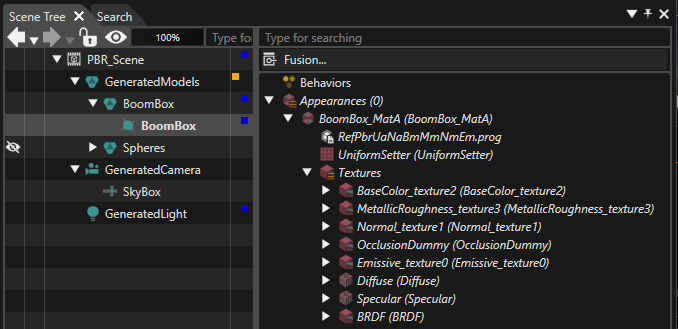
</div></div></div>The Scene Tree shows details of the imported appearance:

<div drawio-diagram="7576"><img src="https://doc3161en.candera.eu/uploads/images/drawio/2024-11/drawing-5-1732892596.png" alt=""/></div>

<div class="contents" id="bkmrk--24"><div class="contents">  
</div></div>##### Mesh:

<table border="1" id="bkmrk-optional-mesh-proper" style="border-collapse: collapse; width: 100%;"><colgroup><col style="width: 11.9137%;"></col><col style="width: 17.4106%;"></col><col style="width: 70.7511%;"></col></colgroup><tbody><tr><td style="background-color: rgb(53, 152, 219);"><span style="color: rgb(255, 255, 255);">**Optional**</span></td><td style="background-color: rgb(53, 152, 219);"><span style="color: rgb(255, 255, 255);">**Mesh Properties**</span></td><td style="background-color: rgb(53, 152, 219);"><span style="color: rgb(255, 255, 255);">**Description**</span></td></tr><tr><td>  
</td><td>position</td><td>Provide the mandatory position attribute.</td></tr><tr><td>optional</td><td>normals</td><td>Define <code>HAS&#95;NORMALS</code> in the fragment shader and vertex shader.</td></tr><tr><td>optional</td><td>tangents</td><td>Define <code>HAS&#95;TANGENTS</code> in the fragment shader and vertex shader.</td></tr><tr><td>optional</td><td>uv set</td><td>Define <code>HAS&#95;UV</code> in the fragment shader and vertex shader.</td></tr></tbody></table>

<div class="textblock" id="bkmrk--25"></div>[![glTF&#95;shader&#95;variants.png](https://doc3161en.candera.eu/uploads/images/gallery/2023-02/scaled-1680-/gltf-shader-variants.png)](https://doc3161en.candera.eu/uploads/images/gallery/2023-02/gltf-shader-variants.png)

<div class="textblock" id="bkmrk-different-shader-var" style="padding-left: 40px;">*The image shows different shader variants (Click the image to enlarge it).*</div><div class="textblock" id="bkmrk--27"></div>##### Uniform Setter:

<table border="1" id="bkmrk-optional-uniform-set" style="border-collapse: collapse; width: 100%;"><colgroup><col style="width: 11.5566%;"></col><col style="width: 21.1141%;"></col><col style="width: 67.4068%;"></col></colgroup><tbody><tr><td style="background-color: rgb(53, 152, 219);"><span style="color: rgb(236, 240, 241);">**Optional**</span></td><td style="background-color: rgb(53, 152, 219);"><span style="color: rgb(236, 240, 241);">**Uniform Setter**</span></td><td style="background-color: rgb(53, 152, 219);"><span style="color: rgb(236, 240, 241);">**Description**</span></td></tr><tr><td> </td><td>model view projection</td><td>Provide the mandatory model view projection.</td></tr><tr><td> </td><td>model matrix</td><td>Provide the mandatory model matrix</td></tr><tr><td>  
</td><td>normal model matrix</td><td>Provide the normal model matrix, which is mandatory if the shader defines <code>HAS&#95;NORMALS </code>and <code>HAS&#95;TANGENTS</code>.</td></tr></tbody></table>

##### Optimization Tips:

<div class="contents" id="bkmrk-use-one-texture-for-"><div class="contents"><div class="textblock">

- Use one texture for occlusion, roughness, and metallic values, stored as an RGB texture.
- Providing tangents in the mesh avoids calculating the tangent space matrix on a per pixel basis.

</div></div></div>For a more information about physically based rendering, see [the Khronos website: metallic roughness](https://github.com/KhronosGroup/glTF/tree/master/specification/2.0#reference-pbrmetallicroughness).

<div class="textblock" id="bkmrk--1">  
</div>#### Importing Transmissive Materials

When you import a glTF file that uses KHR\_materials\_transmission, Scene Composer automatically creates the **multiple render pass** configuration that transmission requires.

##### Render Targets That Scene Composer Creates Automatically

Scene Composer creates the following two render targets and links the offscreen render target to the onscreen render target.

<div class="textblock" id="bkmrk-render-target-descri"><table border="1" style="width: 800px; border-collapse: collapse; border-width: 1px;"><thead><tr style="background-color: rgb(35, 111, 161);"><th style="width: 29.4369%; border-width: 1px;">**<span style="color: rgb(255, 255, 255);">Render Target</span>**</th><th style="width: 70.5393%; border-width: 1px;">**<span style="color: rgb(255, 255, 255);">Description</span>**</th></tr></thead><tbody><tr><td style="width: 29.4369%; border-width: 1px;">OnScreenRenderTarget</td><td style="width: 70.5393%; border-width: 1px;">The render target that appears on the screen. The Copy camera and the Transmission camera render into this render target.</td></tr><tr><td style="width: 29.4369%; border-width: 1px;">OffScreenRenderTarget</td><td style="width: 70.5393%; border-width: 1px;">The render target that renders the area behind transmissive objects. The Opaque camera renders into this render target, and the transmission rendering references the result.</td></tr></tbody></table>

</div>##### Cameras That Scene Composer Creates Automatically

Scene Composer creates three cameras in the imported scene and assigns each of them to a render target automatically.

If the glTF file contains a camera, Scene Composer creates the three cameras based on that camera and collects them into a group named `<camera name>_Group`. The camera names take no suffix (Opaque), `_Copy`, and `_Transmission`, respectively. If the glTF file contains no camera, Scene Composer creates GeneratedCamera\_Opaque, GeneratedCamera\_Copy, and GeneratedCamera\_Transmission.

<div class="textblock" id="bkmrk-properties-opaque-ca"><table border="1" style="width: 800px; border-collapse: collapse; border-width: 1px; height: 206.659px;"><thead><tr style="background-color: rgb(35, 111, 161); height: 29.5227px;"><th style="width: 175.83px; border-width: 1px; height: 29.5227px;">**<span style="color: rgb(255, 255, 255);">Properties</span>**</th><th style="width: 207.807px; border-width: 1px; height: 29.5227px;">**<span style="color: rgb(255, 255, 255);">Opaque Camera</span>**</th><th style="width: 207.807px; border-width: 1px; height: 29.5227px;">**<span style="color: rgb(255, 255, 255);">Copy Camera</span>**</th><th style="width: 207.83px; border-width: 1px; height: 29.5227px;">**<span style="color: rgb(255, 255, 255);">Transmission Camera</span>**</th></tr></thead><tbody><tr style="height: 29.5227px;"><td style="width: 175.83px; border-width: 1px; height: 29.5227px;">Render Target</td><td style="width: 207.807px; border-width: 1px; height: 29.5227px;">OffScreen</td><td style="width: 207.807px; border-width: 1px; height: 29.5227px;">OnScreen</td><td style="width: 207.83px; border-width: 1px; height: 29.5227px;">OnScreen</td></tr><tr style="height: 29.5227px;"><td style="width: 175.83px; border-width: 1px; height: 29.5227px;">Scope Mask</td><td style="width: 207.807px; border-width: 1px; height: 29.5227px;">1</td><td style="width: 207.807px; border-width: 1px; height: 29.5227px;">1</td><td style="width: 207.83px; border-width: 1px; height: 29.5227px;">2</td></tr><tr style="height: 29.5227px;"><td style="width: 175.83px; border-width: 1px; height: 29.5227px;">Clear Color Buffer</td><td style="width: 207.807px; border-width: 1px; height: 29.5227px;">Enabled</td><td style="width: 207.807px; border-width: 1px; height: 29.5227px;">Enabled</td><td style="width: 207.83px; border-width: 1px; height: 29.5227px;">Disabled</td></tr><tr style="height: 29.5227px;"><td style="width: 175.83px; border-width: 1px; height: 29.5227px;">Clear Depth Buffer</td><td style="width: 207.807px; border-width: 1px; height: 29.5227px;">Enabled</td><td style="width: 207.807px; border-width: 1px; height: 29.5227px;">Enabled</td><td style="width: 207.83px; border-width: 1px; height: 29.5227px;">Disabled</td></tr><tr style="height: 29.5227px;"><td style="width: 175.83px; border-width: 1px; height: 29.5227px;">Enable Swapping</td><td style="width: 207.807px; border-width: 1px; height: 29.5227px;">Disabled</td><td style="width: 207.807px; border-width: 1px; height: 29.5227px;">Disabled</td><td style="width: 207.83px; border-width: 1px; height: 29.5227px;">Enabled</td></tr><tr style="height: 29.5227px;"><td style="width: 175.83px; border-width: 1px; height: 29.5227px;">SkyBox</td><td style="width: 207.807px; border-width: 1px; height: 29.5227px;">Used</td><td style="width: 207.807px; border-width: 1px; height: 29.5227px;">Used</td><td style="width: 207.83px; border-width: 1px; height: 29.5227px;">Not Used</td></tr><tr><td style="width: 175.83px; border-width: 1px;">Create Mipmaps After Rendering</td><td style="width: 207.807px; border-width: 1px; height: 29.5227px;">Enabled</td><td style="width: 207.807px; border-width: 1px; height: 29.5227px;">Disabled</td><td style="width: 207.83px; border-width: 1px; height: 29.5227px;">Disabled</td></tr></tbody></table>

</div>The Copy camera is the main camera for the on-screen display. If the glTF file contains a camera, Scene Composer sets the position and the look-at direction of the Copy camera from the transformation matrix of the glTF camera node.

<p class="callout info">Scene Composer does not set a SkyBox on the Transmission camera. It sets a SkyBox only on the Opaque camera and the Copy camera.</p>

The result that the Opaque camera renders into the offscreen render target is referenced when the Copy camera and the Transmission camera render. If the referenced texture has no mipmaps, aliasing occurs and the Roughness of transmissive materials does not appear as intended. For this reason, Scene Composer enables **Create Mipmaps After Rendering** automatically for the Opaque camera. For details about the property, see [Properties Overview](https://doc3161en.candera.eu/books/appendix/page/properties-overview).

##### Scope Mask Assignment

Scene Composer assigns a Scope Mask to each imported object automatically, depending on whether the object uses a transmissive material.

<div class="textblock" id="bkmrk-object-scope-mask-ob"><table border="1" style="width: 57.8571%; border-collapse: collapse; border-width: 1px;"><thead><tr style="background-color: rgb(35, 111, 161);"><th style="width: 64.0959%; border-width: 1px;">**<span style="color: rgb(255, 255, 255);">Object</span>**</th><th style="width: 35.8629%; border-width: 1px;">**<span style="color: rgb(255, 255, 255);">Scope Mask</span>**</th></tr></thead><tbody><tr><td style="width: 64.0959%; border-width: 1px;">Objects that do not use a transmissive material</td><td style="width: 35.8629%; border-width: 1px;">1</td></tr><tr><td style="width: 64.0959%; border-width: 1px;">Objects that use a transmissive material</td><td style="width: 35.8629%; border-width: 1px;">2</td></tr></tbody></table>

</div>##### Shaders and Uniforms

During the import, Scene Composer adds the following preprocessor definitions and uniforms to the shader, depending on the extensions that the glTF file uses.

<div class="textblock" id="bkmrk-extensions-preproces"><table border="1" style="width: 800px; border-collapse: collapse; border-width: 1px;"><thead><tr style="background-color: rgb(35, 111, 161);"><th style="width: 28%; border-width: 1px;">**<span style="color: rgb(255, 255, 255);">Extensions</span>**</th><th style="width: 36%; border-width: 1px;">**<span style="color: rgb(255, 255, 255);">Preprocessor Definitions</span>**</th><th style="width: 36%; border-width: 1px;">**<span style="color: rgb(255, 255, 255);">Uniform</span>**</th></tr></thead><tbody><tr><td style="width: 28%; border-width: 1px;">KHR\_materials\_transmission</td><td style="width: 36%; border-width: 1px;">MATERIAL\_TRANSMISSION  
LINEAR\_OUTPUT  
HAS\_TRANSMISSION\_MAP (if a transmission texture exists)</td><td style="width: 36%; border-width: 1px;">u\_TransmissionFactor  
u\_TransmissionSampler  
u\_TransmissionFramebufferSampler  
u\_TransmissionFramebufferSize</td></tr><tr><td style="width: 28%; border-width: 1px;">KHR\_materials\_volume</td><td style="width: 36%; border-width: 1px;">MATERIAL\_VOLUME  
HAS\_THICKNESS\_MAP (if a thickness texture exists)  
VOLUME\_UV (if the material uses a UV set other than uv0)</td><td style="width: 36%; border-width: 1px;">u\_ThicknessFactor  
u\_AttenuationDistance  
u\_AttenuationColor  
u\_ThicknessSampler</td></tr><tr><td style="width: 28%; border-width: 1px;">KHR\_materials\_dispersion</td><td style="width: 36%; border-width: 1px;">MATERIAL\_DISPERSION</td><td style="width: 36%; border-width: 1px;">u\_Dispersion</td></tr></tbody></table>

</div>The following describes each uniform.

<div class="textblock" id="bkmrk-uniform-description-"><table border="1" style="width: 800px; border-collapse: collapse; border-width: 1px;"><thead><tr style="background-color: rgb(35, 111, 161);"><th style="width: 29.4369%; border-width: 1px;">**<span style="color: rgb(255, 255, 255);">Uniform</span>**</th><th style="width: 70.5393%; border-width: 1px;">**<span style="color: rgb(255, 255, 255);">Description</span>**</th></tr></thead><tbody><tr><td style="width: 29.4369%; border-width: 1px;">u\_TransmissionFactor</td><td style="width: 70.5393%; border-width: 1px;">The transmission factor.</td></tr><tr><td style="width: 29.4369%; border-width: 1px;">u\_TransmissionSampler</td><td style="width: 70.5393%; border-width: 1px;">The transmission texture.</td></tr><tr><td style="width: 29.4369%; border-width: 1px;">u\_TransmissionFramebufferSampler</td><td style="width: 70.5393%; border-width: 1px;">The texture of the offscreen render target.</td></tr><tr><td style="width: 29.4369%; border-width: 1px;">u\_TransmissionFramebufferSize</td><td style="width: 70.5393%; border-width: 1px;">The width and height of the offscreen render target.</td></tr><tr><td style="width: 29.4369%; border-width: 1px;">u\_ThicknessFactor</td><td style="width: 70.5393%; border-width: 1px;">The thickness of the volume. The larger the value, the stronger the absorption.</td></tr><tr><td style="width: 29.4369%; border-width: 1px;">u\_AttenuationDistance</td><td style="width: 70.5393%; border-width: 1px;">The distance, in world units, that light travels before the volume absorbs it. The shader treats the medium as homogeneous over this attenuation distance.</td></tr><tr><td style="width: 29.4369%; border-width: 1px;">u\_AttenuationColor</td><td style="width: 70.5393%; border-width: 1px;">The color of the light that the volume absorbs. This color determines the tint of the volume material.</td></tr><tr><td style="width: 29.4369%; border-width: 1px;">u\_ThicknessSampler</td><td style="width: 70.5393%; border-width: 1px;">The thickness texture of the volume.</td></tr><tr><td style="width: 29.4369%; border-width: 1px;">u\_Dispersion</td><td style="width: 70.5393%; border-width: 1px;">The strength of the dispersion. A value of 0.0 means no dispersion. The larger the value, the stronger the iridescent refraction.</td></tr></tbody></table>

</div><p class="callout info">For the **Transmission**, **Volume**, and **Dispersion** properties that apply when you use GltfAppearance, see <span style="color: rgb(230, 126, 35);">[**Properties Overview**](https://doc3161en.candera.eu/books/appendix/page/properties-overview)</span>.</p>

<div class="textblock" id="bkmrk--3">  
</div>---

#### Useful links

Khronos references include the following resources:

<div class="contents" id="bkmrk-gltf-overview-%28https"><div class="contents"><div class="textblock">

- glTF Overview ([https://www.khronos.org/gltf/](https://www.khronos.org/gltf/))
- glTF 2.0 Specification ([https://github.com/KhronosGroup/glTF/tree/master/specification/2.0](https://github.com/KhronosGroup/glTF/tree/master/specification/2.0))
- glTF 2.0 Sample Models ([https://github.com/KhronosGroup/glTF-Sample-Models/tree/master/2.0](https://github.com/KhronosGroup/glTF-Sample-Models/tree/master/2.0))

</div></div></div>The Khronos specification is available here:

<div class="contents" id="bkmrk-specification-%28https"><div class="contents"><div class="textblock">

- Specification ([https://github.com/KhronosGroup/glTF](https://github.com/KhronosGroup/glTF))

</div></div></div>The following viewers are available:

<div class="contents" id="bkmrk-babylonjs-sandbox-%28h"><div class="textblock">

- BabylonJS Sandbox ([https://sandbox.babylonjs.com/](https://sandbox.babylonjs.com/))
- donmccurdy glTF viewer ([https://gltf-viewer.donmccurdy.com/](https://gltf-viewer.donmccurdy.com/))
- Khronos glTF Sample Viewer ([https://github.khronos.org/glTF-Sample-Viewer-Release/](https://github.khronos.org/glTF-Sample-Viewer-Release/))
</div></div>