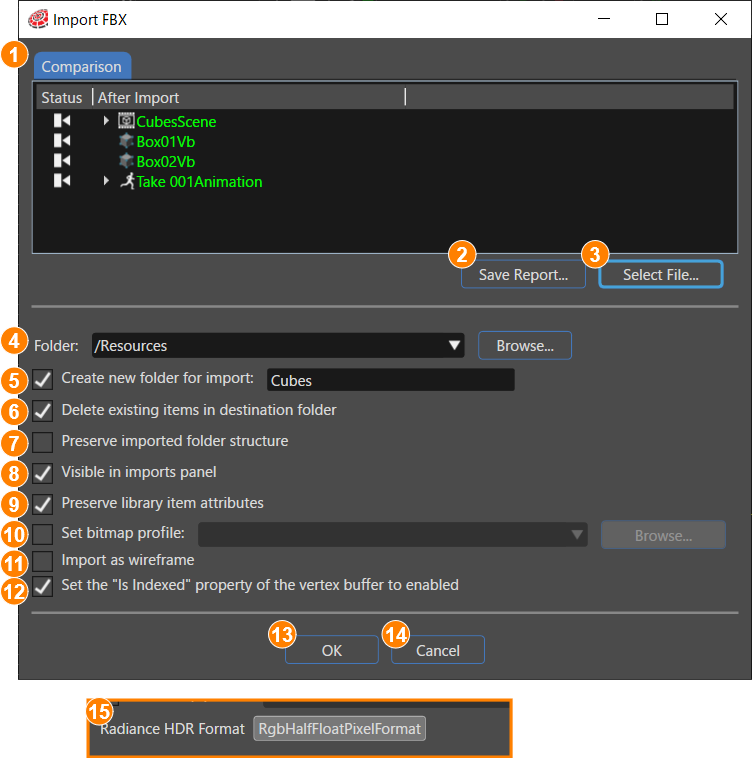
The available options within the dialog may vary depending on the type of asset being imported.
#### Import Dialog| 1 | **Comparison:** Resources at the import destination are compared with those included in the current import, and the resulting update status is displayed. The import status is indicated by icons and tooltips in the **Status** column and is also reflected by the font color of each resource name in the **After Import** column. **Green:** A new resource will be added. **Yellow:** A resource with the same name exists, but its properties differ. **No highlight:** A matching resource already exists with identical properties, or the resource is not included in the current import. |
| 2 | **Save Report…:** Generates and saves a report file (CVS format) summarizing the comparison results for the imported files. The report name and save location can be specified in the dialog that appears when this button is clicked. |
| 3 | **Select Files…:** Opens a dialog that allows you to choose the items to be imported into the solution. |
| 4 | **Folder:** Select the destination folder for imported files. Use the drop-down menu or the **Browse** button to select any location in the Solution Explorer as root folder for the import destination. By default, the root folder **/Resources** is selected. |
| 5 | **Create new folder for import:** Enable this option to create a new subfolder within the selected destination specified in (4) **Folder**. Enter the name of the new subfolder in the provided input field. |
| 6 | **Delete existing items in destination folder:** When enabled, all existing content in the destination folder is deleted before the import operation is performed. |
| 7 | **Preserve imported folder structure:** This option is available only when importing **Image** or **3D model** file types, and it can be enabled only if **Delete existing items in destination folder** is active. When selected, all existing files in the destination folder are removed while retaining the existing folder structure. \*Note: This option is not available when importing **Font** or **Shader** file types. |
| 8 | **Visible in imports panel:** When enabled, imported items are displayed in both the **Imports** panel and the **Solution Explorer**. |
| 9 | **Preserve library item attributes:** This option allows you to retain specific item attributes during a re-import operation. When enabled, previously assigned attributes remain unchanged, even if newly imported data contains different values. Attributes that can be preserved include: **- Bitmap properties:** Converter, Target format, Origin **- Vertex buffer properties:** Buffer type, enable cache, position, normal, texture coordinate, tangent, bi normal etc. When preservation is applied, the re-import process does not overwrite these properties, regardless of the differences in the incoming data. |
| 10 | **Set bitmap profile:** Specifies a default bitmap profile applied to all bitmaps that do not have an explicitly assigned profile. This option is available when importing **Images, FBX,** and **glTF** files. Bitmap profiles can be configured in the following ways: \- From the menu bar: **Solution > [Solution Options...](https://doc3161en.candera.eu/books/solution-handling/page/bitmap-profile)** \- From the **Properties** panel, which appears when selecting the target resource in the **Solution Explorer**. |
| 11 | **Import as wireframe:** This option is available only when importing FBX files. When enabled, a wireframe vertex buffer is generated based on the triangles and rectangles defined in the FBX file. Both the standard vertex buffer and the wireframe vertex buffer are then registered under **[Associated Vertex Buffer](https://doc3161en.candera.eu/books/solution-handling/page/associated-vertex-buffer)** in the Solution Options. |
| 12 | **Set the "Is Indexed" property of the vertex buffer to enabled:** This option is available only when importing FBX files and is enabled by default. When selected, the buffer type is converted to an **index array**, allowing Scene Composer to automatically determine and apply the appropriate index size. If disabled, the buffer type is set to a **regular array** instead. |
| 13 | **OK button:** Imports the selected resources using the configured settings. |
| 14 | **Cancel button:** Closes the dialog without performing the import operation. |
| 15 | **Radiance HDR Format:** This option is displayed only when the import selection contains Radiance HDR (.hdr) files. The default value follows the format configured in Solution Options > [Import Images Config](https://doc3161en.candera.eu/books/solution-handling/page/import-images-config). Available formats include: - RgbFloatingPoint9E5PixelFormat - RgbFloatPixelFormat - RgbHalfFloatPixelFormat - RgbaFloatPixelFormat - RgbaHalfFloatPixelFormat |
In an OpenGL ES 2.0 environment, none of the available Radiance HDR Format options (RgbFloatingPoint9E5PixelFormat / RgbFloatPixelFormat / RgbHalfFloatPixelFormat / RgbaFloatPixelFormat / RgbaHalfFloatPixelFormat) are supported. If any of these formats are present in the solution, a warning is displayed in the [Problems panel](https://doc3161en.candera.eu/books/solution-handling/page/problems-browser).
#### SVG Importer Dialog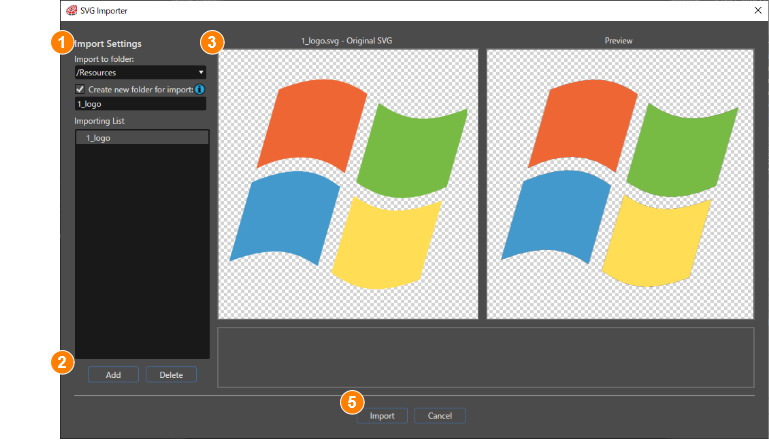
| (1) | **Import Settings**
**Import to folder:**
Specifies the destination folder in the **Solution Explorer** where the SVG file will be imported.
**Create new folder for import**
Enables the creation of a new subfolder within the selected destination. Enter the name of the new subfolder in the input field provided.
**Importing List**
Displays the items selected for import.
\- Items that cannot be imported are indicated with an **error icon**.
\- Items that can only be partially imported are indicated with a **warning icon**
Even if no icon is displayed, certain elements may still fail to load due to their content or structure. |
| (2) | **Add/Delete:** **Add:** Adds an additional SVG file to the list of items to be imported. **Delete**: Removes the selected SVG file from the import list. |
| (3) | **Preview Display:**
**Left-side:** Displays the original SVG image selected from the **Importing List**
**Right-side:** Shows a preview of how the selected SVG image will appear after being imported into Scene Composer.
In the current version of Scene Composer, the previewed size may not always match the original dimensions of the original SVG image. |
| (4) | **Error Message:** Displays any warnings or errors associated with the selected file. |
| (5) | **Import/Cancel:** **Import:** Imports all items listed in the **Importing List.** **Cancel:** Cancels the import operation without importing any items. |