# Import Raw Resources
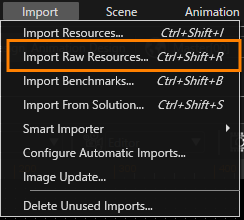
To import any type of raw resource, select **Import > Import Raw Resources...** from the menu bar.
You can import raw resources in SceneComposer by dragging them onto the **Solution Explorer** panel.
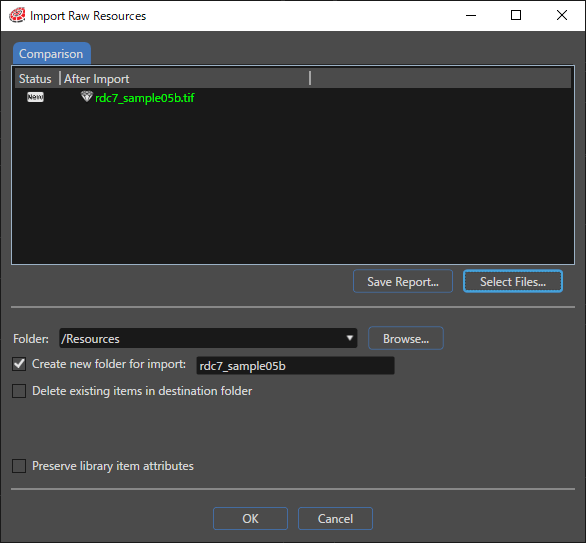
In the **Import Raw Resources** dialog, click the **Select Files...** button. SceneComposer opens the **Open File** dialog. In this dialog, select one or more raw resources to import, then click **OK**.
Click **Save Report...** to save the content of the **Comparison** tab in CSV (Comma Separated Values) format. In the **Save As** dialog, enter a name and select the location for the CSV file.
For a description of the **Import Raw Resources** dialog's checkboxes, refer to [Import Dialog Options](https://doc3161en.candera.eu/books/import-of-resources/page/import-dialog-options "Import Dialog Options").
To compare new content with already imported resources, right-click a raw resource, to open the **Compare Properties** dialog.
---
#### Problems: Import Conflicts
SceneComposer's **Problems** panel lists potential import conflicts.
Dependency errors occur during import if you check the **Delete existing items in destination folder** checkbox and this destination folder contains items that are used in the solution.