# Fusion

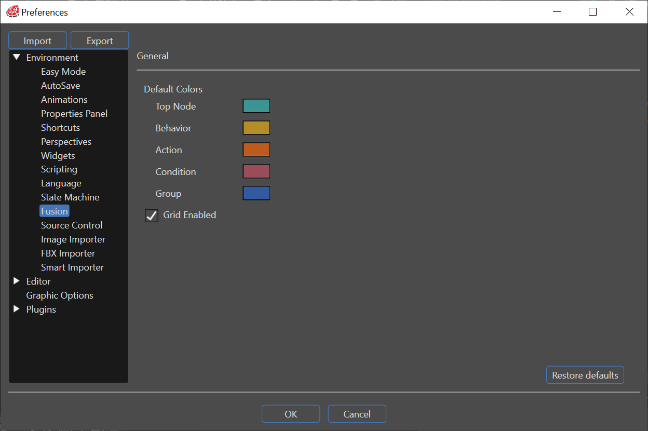
Open the Preferences dialog by selecting **File &gt; Preferences...** from the menu bar. In the Preferences dialog, navigate to **Environment &gt; Fusion** to configure settings that control how information is displayed within the Fusion panel.

<div drawio-diagram="6491"><img src="https://doc3161en.candera.eu/uploads/images/drawio/2024-07/drawing-5-1721997234.png" alt=""/></div>

#### General

<table border="1" id="bkmrk-default-colors-you-c" style="border-collapse: collapse; width: 100%;"><colgroup><col style="width: 23.115%;"></col><col style="width: 76.885%;"></col></colgroup><tbody><tr><td>Default Colors</td><td><span style="color: rgb(0, 0, 0);">You can customize the color of newly created Fusion nodes displayed in the Fusion panel. </span>

<span style="color: rgb(0, 0, 0);">Changing the default color does **not** affect nodes that have already been created. However, the updated color will be applied to existing nodes in the Fusion diagram if the user selects "<span style="color: rgb(230, 126, 35);">[Restore Default Header Color](https://doc3161en.candera.eu/link/1060#bkmrk-lock-performs-an-edi)</span>" from the context menu.</span>

</td></tr><tr><td>Grid Enabled</td><td>When this option is enabled, a grid is displayed in the <span style="color: rgb(230, 126, 35);">[Fusion panel](https://doc3161en.candera.eu/books/fusion/page/fusion-editor-ui)</span>, providing visual guidance for aligning and positioning nodes.</td></tr><tr><td><span style="color: rgb(0, 0, 0);">Restore Defaults</span></td><td>Clicking the **Restore defaults** button resets all settings in this section to their original default values.</td></tr></tbody></table>