# Manage Nodes

#### Copying and Moving Scene Nodes

A scene is composed of individual **scene nodes**. They may originate from the **Toolbox** panel or the **Imports** panel.

During solution development, you may need to divide a single scene into multiple smaller scenes or merge elements from several scenes to maintain a structured and manageable solution. Instead of recreating nodes manually, you can copy and paste existing nodes into any other scene as needed.

To copy and paste a node, follow the steps below:

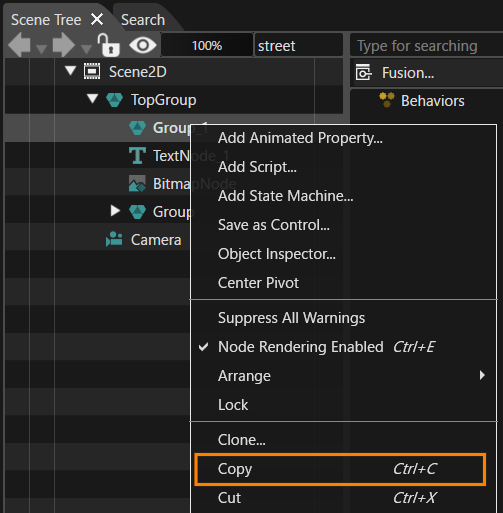
1. In the Scene Tree or Scene Editor, select the desired node.
2. Right-click on your selection. 
    - The context menu is opened.
3. Choose **Copy** from the context menu.
4. Switch to the target scene.
5. In Scene Tree or Scene Editor, right-click where you want the copied node to be placed. 
    
    <p class="callout info">Within the **Scene Tree**, you can also navigate to a specific node - such as a **GroupNode** - and right-click it to paste the copied element directly into that node.</p>
    
    
    - The context menu is opened.
6. Choose **Paste** from the context menu 
    - The copied item is pasted.

<div drawio-diagram="7194"><img src="https://doc3161en.candera.eu/uploads/images/drawio/2024-10/drawing-4-1730102358.png" alt=""/></div>

<div class="contents" id="bkmrk--0"><div class="contents"><div class="textblock">  
</div></div></div>You can also use the following keyboard shortcuts to perform copy, cut and paste operations:

- **Ctrl + C** ... Copy
- **Ctrl + X** ... Cut
- **Ctrl + V** ... Paste

During copy, cut or paste operations, the Scene Composer executes the requested action and reports any resulting errors or warnings. These messages may include issues such as missing references, invalid paths, or other dependency violations.

<div class="contents" id="bkmrk-it-is-possible-to-se"><div class="contents"><div class="textblock"><dl class="note"><dd><p class="callout info">It is possible to select and copy, cut or paste **multiple nodes simultaneously**, provided that all selected nodes reside at the same level within the scene hierarchy.</p>

</dd></dl></div></div></div>---

#### Clone, Delete and Rename Scene Nodes

##### Clone

You can clone a scene node using the **Clone** option from the context menu following the steps below:

1. Right-Click on the item you want to clone. 
    - The context menu opens.
2. Select **Clone** from the context menu 
    - The **Clone Item** dialog appears, as shown below.
3. Enter a name for your clone (or accept the provided name) and confirm by clicking **OK**. 
    - The cloned item is created in the same group or scene as the original.

<div class="contents" id="bkmrk--8"><div class="contents">  
</div><div class="contents">If multiple clones of the same item are required, use the **Multiple Clone** option as described here:</div><div class="contents">  
</div><div class="contents">

1. Right-Click on the item you want to clone. 
    - The context menu opens.
2. Select **Clone** from the context menu 
    - The **Clone Item** dialog appears, as shown below.
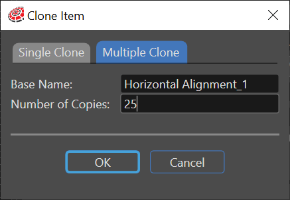
3. Switch to the **Multiple Clone** tab. 
    - The **Clone Item** dialog is displayed as shown below.
4. Enter a base name for your clone (or accept the provided name) and the number of clones to be created. Confirm by clicking **OK**. 
    - The cloned items are created in the same group or scene as the original.

<div class="contents" id="bkmrk--1"></div></div></div><div drawio-diagram="6021"><img src="https://doc3161en.candera.eu/uploads/images/drawio/2024-06/drawing-5-1717751784.png" alt=""/></div>

<div class="contents" id="bkmrk--10"><div class="contents"><div class="textblock">  
</div></div></div>When creating multiple clones (or pasting a copied node), the system automatically checks whether the node's name ends with a numeric suffix. If a number is present, it is incremented for the new node.

For example:

- Cloning **Node\_1** results in **Node\_2, Node\_3....**
- Cloning **Node1** results in **Node2, Node3....**.

<div class="contents" id="bkmrk-the-duplication-of-t"><div class="contents"><div class="textblock"><dl class="note"><dt></dt></dl>  
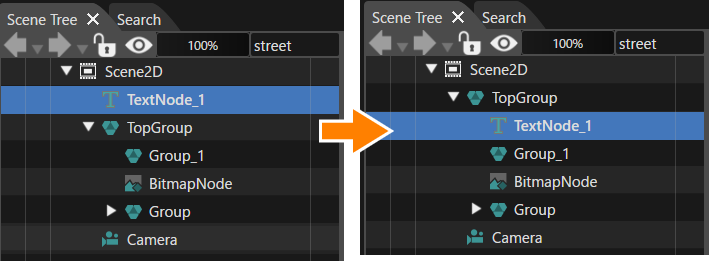
</div></div></div>To duplicate an item in the selected location, hold **LeftShift** while dragging and dropping the item.  When you release the mouse button, a copy of the item is created at the target location.

Note that duplicating an item as a child of itself is currently not supported.

<div drawio-diagram="7195"><img src="https://doc3161en.candera.eu/uploads/images/drawio/2024-10/drawing-4-1730102547.png" alt=""/></div>

##### Delete

A scene node can be deleted using the **Delete** option in the context menu or by pressing the **Delete** key on your keyboard.

Special care must be taken when deleting items that have dependencies. Additional details on handling dependent items can be found [<span style="color: rgb(230, 126, 35);">here</span>](https://doc3161en.candera.eu/books/solution-handling/page/organize-a-solution-using-folders#bkmrk-delete-items)

##### Rename

A scene node can be renamed using the **Rename** option in the context menu or by pressing **F2**.

#### Revert Properties to Default Value

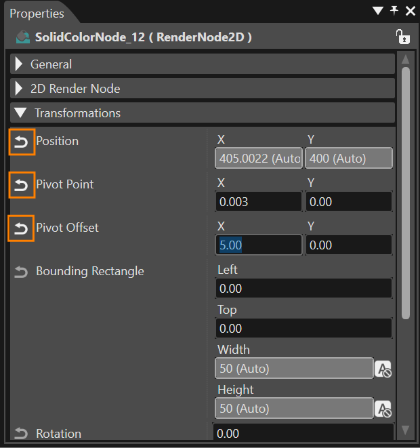
Properties of instance items can be modified in the Properties panel. If necessary, any modified property can be restored to its default value using the **Revert** button (see image below).

<div drawio-diagram="6023"><img src="https://doc3161en.candera.eu/uploads/images/drawio/2024-06/drawing-5-1717752095.png" alt=""/></div>

##### Reset Node Structure

Groups created from a template item (an imported scene graph) can be restored to their original template structure by using the **Reset Structure** option in the context menu of the group. When this action is performed, any delete or modified elements within the group are restored to their default template configuration.

<div class="contents" id="bkmrk--3">---

</div>#### Multi-Selection and Comparison of Nodes

1. For multi-selection of nodes, press the **Ctrl** key while left clicking all the desired elements to select. When the last desired element is selected the **Ctrl** key can be released.
2. To select a set of **consecutive** items, click the first item, press the **Shift** key while clicking the last item.
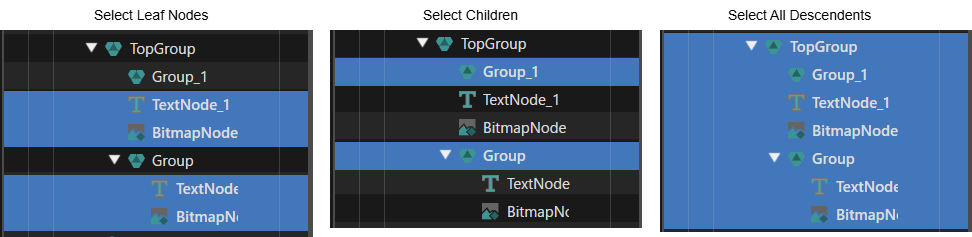
3. Another way is to use one of **select** options from the Scene Tree **context menu** for multi-selection: 
    - Select &gt; Leaf Nodes
    - Select &gt; Children
    - Select &gt; All Descendants

<div class="contents" id="bkmrk--7"><div class="contents" id="bkmrk-select-leaf-nodes-se"><div class="contents"><div class="textblock">  
</div></div></div></div>**Examples:**

<div class="contents" id="bkmrk--11"><div drawio-diagram="7196"><img src="https://doc3161en.candera.eu/uploads/images/drawio/2024-10/drawing-4-1730102620.png" alt=""/></div>

</div>After the multi-selection operation it is possible to copy, move or delete all selected items as desired.

<div class="contents" id="bkmrk-the-first-change-of-"></div>