# Scene3D

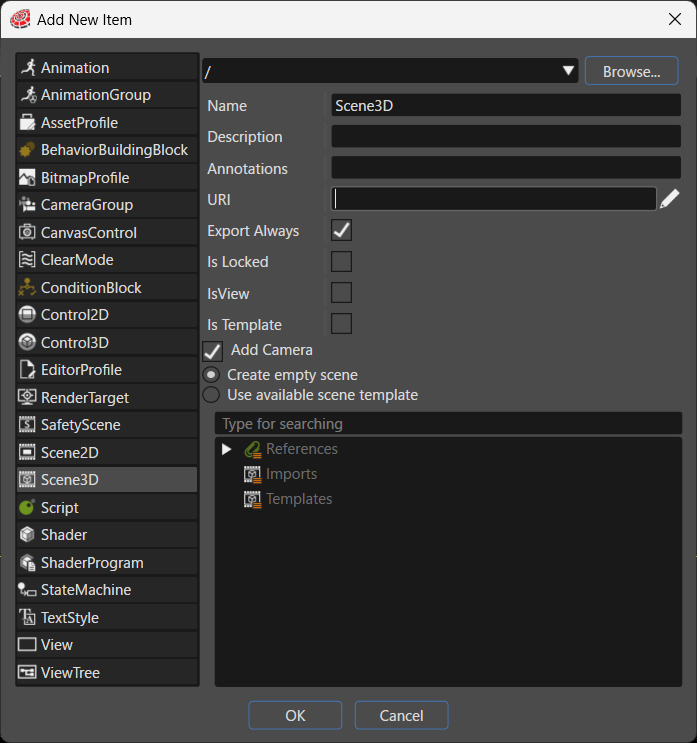
Adds a new 3D scene to the solution. You can choose whether to create an empty scene or to create the scene from an available scene template.

<div drawio-diagram="9041"><img src="https://doc3161en.candera.eu/uploads/images/drawio/2026-06/drawing-4-1782107405.png" alt=""/></div>

<table border="1" id="bkmrk-%E9%A0%85%E7%9B%AE%E5%90%8D-%E8%AA%AC%E6%98%8E-%E4%BF%9D%E5%AD%98%E5%85%88%E3%83%91%E3%82%B9-%E6%96%B0%E8%A6%8F%E4%BD%9C%E6%88%90%E3%81%99%E3%82%8B%E3%82%A2" style="width: 800px; border-collapse: collapse;"><thead><tr><th style="width: 180px; background-color: rgb(35, 111, 161);"><span style="color: rgb(255, 255, 255);">Item</span></th><th style="width: 619.2px; background-color: rgb(35, 111, 161);"><span style="color: rgb(255, 255, 255);">Description</span></th></tr></thead><tbody><tr><td style="width: 180px;">Destination path</td><td style="width: 619.2px;">Specifies the folder in the solution where the system places the new item. Click **Browse...** to select an existing folder.</td></tr><tr><td style="width: 180px;">Name</td><td style="width: 619.2px;">Sets the name of the new item.</td></tr><tr><td style="width: 180px;">Description</td><td style="width: 619.2px;">Describes the new item in detail.</td></tr><tr><td style="width: 180px;">Annotations</td><td style="width: 619.2px;">Serves as storage for notes and other project-related information. The system exports the entered text to the HMI report.</td></tr><tr><td style="width: 180px;">URI</td><td style="width: 619.2px;">You can set any URI. If you enter a valid URI, clicking it launches the browser and displays the contents of the link.</td></tr><tr><td style="width: 180px;">Export Always</td><td style="width: 619.2px;">Specifies whether the system always includes this item as part of the asset.</td></tr><tr><td style="width: 180px;">Is Locked</td><td style="width: 619.2px;">Specifies whether the item is locked.</td></tr><tr><td style="width: 180px;">IsView</td><td style="width: 619.2px;">Specifies whether the scene is also used as a View.</td></tr><tr><td style="width: 180px;">Is Template</td><td style="width: 619.2px;">When you enable this option, the scene becomes a template for creating other scenes.</td></tr><tr><td style="width: 180px;">Add Camera</td><td style="width: 619.2px;">Specifies whether to add a camera to the new scene.</td></tr><tr><td style="width: 180px;">Create empty scene / Use available scene template</td><td style="width: 619.2px;">Provides radio buttons that switch the creation method of the new scene. 

- Select **Create empty scene** to create an empty scene.
- Select **Use available scene template** to choose a template from the template tree at the bottom.

</td></tr><tr><td style="width: 180px;">Search</td><td style="width: 619.2px;">Provides a field that searches the template tree.</td></tr><tr><td style="width: 180px;">Template tree</td><td style="width: 619.2px;">Displays a tree view that lets you select the source template when you select **Use available scene template**.</td></tr></tbody></table>