
Docs Agent
The Docs Agent is an AI-powered chatbot designed to accelerate your search within the CGI Studio documentation. The conversational assistant can:
- Summarize long documentation pages
- Connect concepts across different pages
- Point you to specific tutorials
The Docs Agent has two primary ways of access:
- Directly in the product documentation
- As MCP Server with your favourite MCP Client (like Claude.ai or Claude Code, Codex, Antigravity, or similar)
Docs Agent in the Product Documentation
The Docs Agent directly in your online or offline CGI Studio documentation.
How to Access
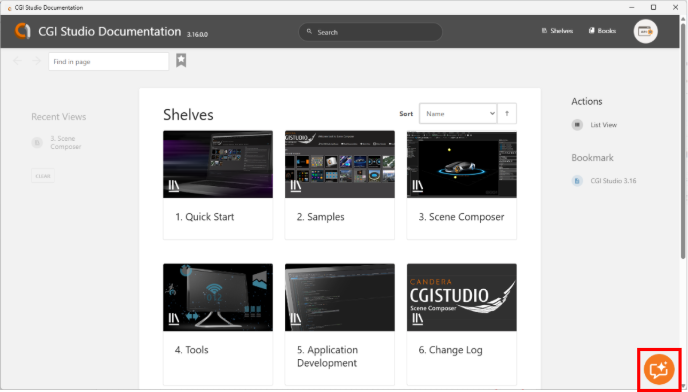
Click the Docs Agent icon at the bottom right of the screen (red box in the figure) to open the chat window (orange box).
How to use
Clicking the Docs Agent icon described above opens a chat window on the documentation page. Here, we explain the UI of the initial screen shown immediately after launch and the screen where an answer is displayed after you submit a question.
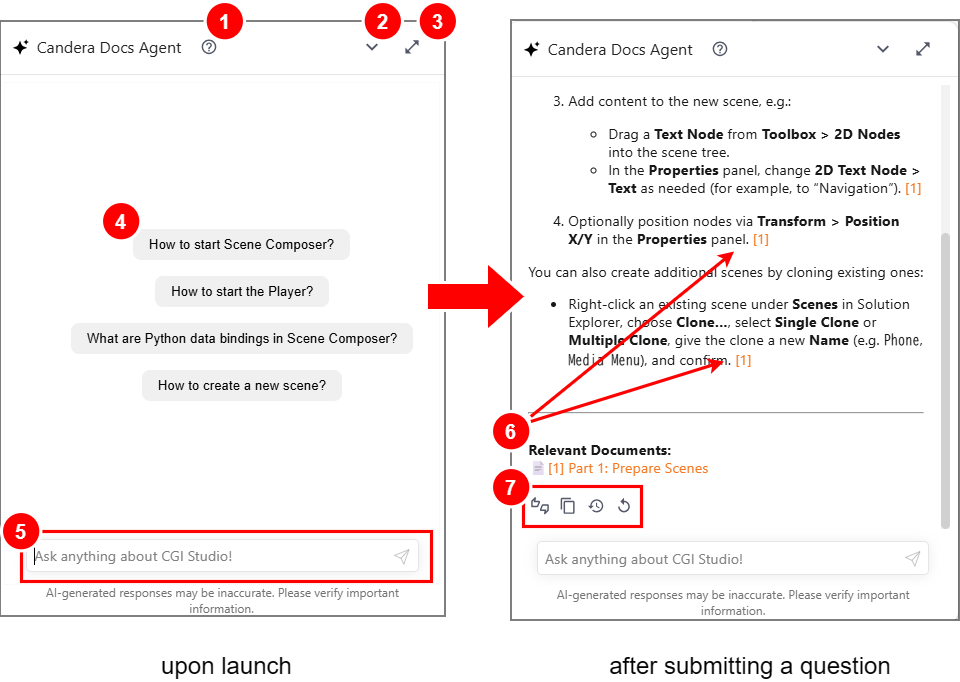
| 1 | Help button | A **Help** menu is available in the top bar of the Docs Agent window. From there, you can open the following information:
|
| 2 | Minimize button | Clicking this button closes the Docs Agent window. |
| 3 | Maximize / Restore button | Clicking this button maximizes the Docs Agent window. Click it again to restore the window to its original size. |
| 4 | Suggested prompts | Before you enter a custom prompt, suggested prompts are displayed. Clicking a suggested prompt inserts its content so you can ask a question immediately. |
| 5 | Chat input field | Enter your question in the chat input field and press ENTER to receive a response from Docs Agent. |
| 6 | Relevant Documents | Links to the documentation pages that Docs Agent referenced when generating the answer are shown. The numbers at the end of the answer indicate the corresponding source links as reference numbers. Clicking a number opens the associated source link and displays the referenced documentation page. |
| 7 | Action button | Action buttons are displayed below the response from Docs Agent.
|
While the agent is optimized for accuracy, AI responses can occasionally be incorrect or misleading. Before proceeding with any implementation, always use the **source links** (see figure) to review the original article.
Troubleshooting
If the Docs Agent icon is not visible, please check your internet connection or firewall settings. Occasionally, temporary service interruptions may also prevent the agent from loading.
Privacy
Docs Agent MCP Server
Enable your AI tools to communicate with the docs agent via the Model Context Protocol.
Requirements
- An MCP client that supports remote MCP servers over HTTP with OAuth authentication (for example Claude.ai, Claude Code, Codex, Antigravity, or Cursor).
- A Google or GitHub account to sign in with.
- Access from your machine to
https://chatbot.cgistudio.at(check your firewall or proxy settings if the connection fails).
How to Access
The server endpoint is:
https://chatbot.cgistudio.at/api/mcp
Add this URL to your MCP client. The exact steps depend on the client; the following examples cover the most common ones.
Claude Code
Run the following command in your terminal:
claude mcp add --transport http docs-agent https://chatbot.cgistudio.at/api/mcp
Then start Claude Code and run /mcp to complete the sign-in.
Claude.ai (web and desktop)
Open Settings → Connectors → Add custom connector, enter a name (for example CGI Studio Docs Agent) and the server URL above, then confirm and connect.
Clients using a JSON configuration file (for example Cursor and many others)
Add the server to the mcpServers section of the client's MCP configuration file (exact elements may differ slightly):
{
	"mcpServers": {
		"docs-agent": {
			"type": "http",
			"url": "https://chatbot.cgistudio.at/api/mcp"
		}
	}
}
Antigravity
Open the Agent panel, go to the MCP server settings and choose to edit the configuration file (mcp_config.json). Add the server under mcpServers — note that Antigravity uses serverUrl for remote servers and needs OAuth to be enabled explicitly:
{
	"mcpServers": {
		"docs-agent": {
			"serverUrl": "https://chatbot.cgistudio.at/api/mcp",
			"oauth": {
				"enabled": true
			}
		}
	}
}
Save the file and refresh the MCP servers in the Agent panel,panel. It will present you with an "Authenticate" button - click it and then follow the browser sign-in described below.
Codex
Add the server to ~/.codex/config.toml:
[mcp_servers.docs_agent]
url = "https://chatbot.cgistudio.at/api/mcp"
Signing in
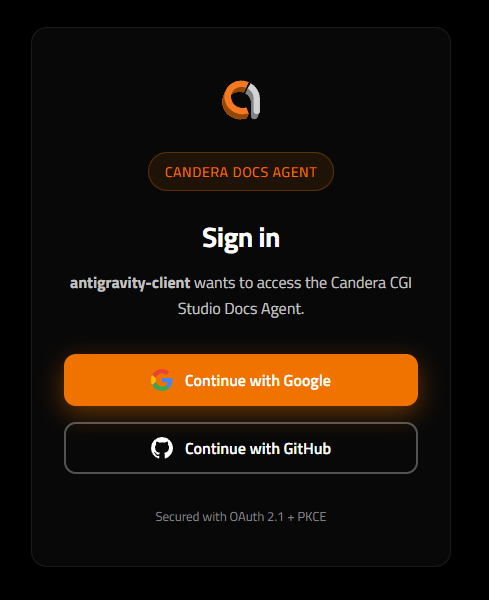
The first time your client connects, it opens a browser window and asks you to choose a login provider — Google or GitHub. After you have signed in and approved the access request, the browser returns to your MCP client and the connection is established. Your client stores the resulting access token, so this step is only required once per client (and again whenever the token expires or you revoke it).
How to use
Once connected, the server provides one tool and two resources to your AI assistant.
| Type | Name | Description |
| Tool | chat |
Asks a question about the CGI Studio documentation and returns an answer, including references to the relevant documentation pages. |
| Resource | cgi://platforms |
The list of available hardware platforms, so the assistant can pick a valid value for the platforms parameter. |
| Resource | cgi://versions |
The list of available CGI Studio product versions, so the assistant can pick a valid value for the cgistudioVersion parameter. |
In normal use you do not call these directly. Simply ask your assistant a CGI Studio question — for example:
Ask the Docs Agent how to set up a state machine in CGI Studio 3.16 and summarize the steps.
The assistant then calls the chat tool on your behalf and answers with the information it received.
The chat tool accepts the following parameters. Your MCP client fills them in automatically, but it is useful to know that you can steer them from your prompt (for example: "ask the Docs Agent about … for CGI Studio 3.15 on i.MX8").
| Parameter | Required | Description |
query |
yes | The question, in English. If you ask in another language, the client is instructed to translate the question before sending it. |
cgistudioVersion |
no | The CGI Studio version you are working with, for example 3.16.0.0. If omitted, the current default version is used. |
platforms |
no | The target platforms to scope the answer to, for example imx8 or wayland. Use all to include all platforms. |
session_id |
no | A conversation handle returned by a previous call. Passing it back continues the same conversation with its history; omitting it starts a new conversation. |
Conversation history
Each conversation is identified by a session_id that the server returns with every answer. As long as your client passes that handle back, follow-up questions keep the context of the previous ones. A conversation expires 24 hours after the last message and is then deleted. A conversation can only be continued by the user who started it — a handle from another user is rejected.
Answer quality
As with the Docs Agent in the product documentation, AI responses can occasionally be incorrect or misleading. The answers contain references to the documentation pages that were used. Always open those pages and review the original article before you rely on an answer for your implementation.
Troubleshooting
| Symptom | What to check |
| The client cannot reach the server | Check your internet connection, firewall, and proxy settings for https://chatbot.cgistudio.at. Also verify that the URL is entered exactly as shown, including the /api/mcp path. |
| The browser does not open for sign-in, or the login window fails | Make sure pop-ups are allowed and that your MCP client is permitted to open a browser. Some clients offer a manual command (for example /mcp in Claude Code) to trigger the sign-in again. |
The tool answers Not authenticated: this tool requires a signed-in user. |
Your access token is missing or has expired. Disconnect and reconnect the server in your client to sign in again. |
| The tool answers that the conversation belongs to a different user | The session_id was created by another user or in another account. Start a new conversation without a session_id. |
| A previous conversation no longer has context | Conversations expire after 24 hours of inactivity. Continue by asking your question again without the old handle. |
Upstream request failed. |
A temporary service interruption. Retry the question; if the problem persists, contact support. |
Privacy
Your questions and the resulting answers are processed by the same service as the Docs Agent in the product documentation and are subject to the same privacy policy. In addition, note the following for the MCP server:
- Signing in via Google or GitHub shares your account identifier (and e-mail address) with the service. It is used to authenticate you and to keep your conversations separate from those of other users.
- Conversation content is stored in the EU and is deleted automatically 24 hours after the last message of that conversation.
- Your MCP client stores the access token locally on your machine. Remove the server from the client's configuration to delete it.