
Automatic Imports
If necessary, ityou is possible tocan configure monitored folders for automaticAutomatic importsImports -of both images and fbxFilmbox (FBX) files. To use thisthe featureAutomatic itImports is mandatory tofeature, enable it.Automatic Imports. This operationcan isbe possibledone in two different ways:
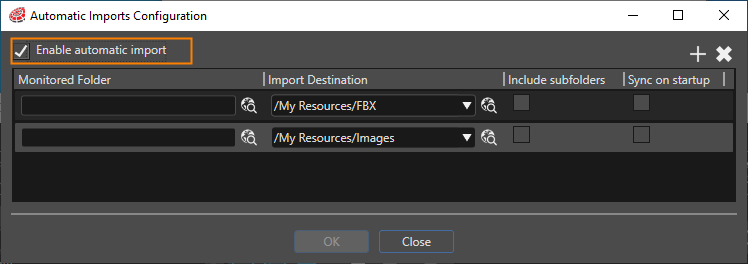
By checkingOpen the"Enable automatic import" box in the "Automatic ImportsConfiguration"Configurationpaneldialog(seebytheselectingimageImportbelow).>ThisConfigurewindow can be opened through the menu "Import" - "ConfigureAutomatic Imports..."
in the menu. In this dialog, check the Enable automatic import box.
Each item in
"the Automatic ImportConfiguration"Configuration dialogallowslets youtoconfiguresetAutomatictheImportdetails of automatic import.
settings.Monitored Folder SetSpecifies the folderforthatmonitoringSceneComposer monitors.Import Destination SetSpecifies the destination folder forimport.imported files.Include subfolders Enable this optionSpecifies ifyouSceneComposerwant toshould monitor filesunderin thesub-folderssubfolders of thefolderselectedyouMonitoredset as the Monitoring Folder.Folder.Sync on startup EnableSpecifies if SceneComposer should automatically sync the selected Monitored Folder when thisoptionsolutionallowsisyouopened.that[If
AutoSync on startup is enabled, the Automatic Import]promptdialog box will appearappears when the solution isstartedopened,andallowingwhen thisconfiguration is performedyou tosynchronizeconfirm themonitoredimportfolders.before it proceeds.TheSceneComposer"configurationsynchronizesismonitoredperformed"foldersisin the following twotimming.cases:
-EnableYou[enable Sync onstartstartup]inonthe"Automatic ImportsConfiguration"Configurationdialogdialog, butifSceneComposeranyhassynchronizationnothasn'tsynchronizedbeenmonitoreddonefoldersat aduring solution startup.
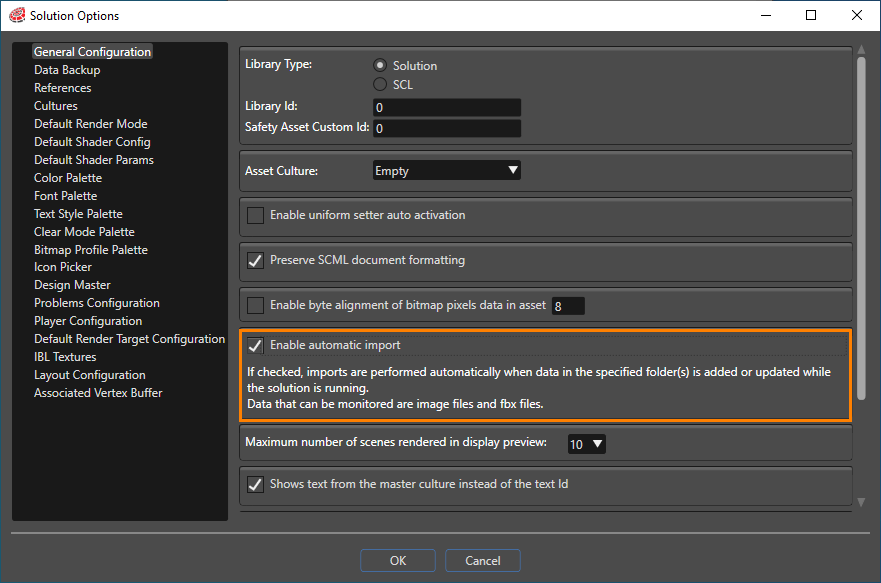
-IfYou[change Sync on startup] is changedfrom disabled to enabled.By checkingOpen the"EnableSolutionautomaticOptionsimport"dialogboxby selecting File > Solution Options... in the menu. In the General Configurationsectionsection,ofcheck the"SolutionEnableOptions"automaticpanelimport(see the image bellow):
box.
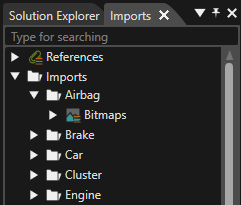
When the content of a folder iscontents modified,change, SceneComposer notifies you that thereimports are pendingpending, imports andoffering the user can choose tofollowing import theoptions:
The Scene Composer saves the configured paths are specific for each solution and are saved in
USER_DIR\ AppData\Roaming\SceneComposer\Solutions\

-
When you convert a solution
is convertedto another version orismigratemigratedit to another platform, theconfigurationsAutomaticforImportsautomatic importsconfiguration will not belost.preserved.
BestAs practicea forbest usingpractice, thisconsider feature is thatconfiguring the user should configure themonitored folders that will be monitored in such a matterso that they contain either
The reason for this is, if the modified files in the folder on disk containinclude aan fbxFBX file, SceneComposer performs only aan FBX import willand bedoes done,not soimport anymodified imagesimage files modified that are not neededrequired by the fbxFBX will not be imported.file.