
Automatic Imports
If necessary, you can configure monitored folders for Automatic Imports of both images and Filmbox (FBX) files. To use the Automatic Imports feature, enable Automatic Imports. This can be done in two ways:
- Open the Automatic Imports Configuration dialog by selecting Import > Configure Automatic Imports... in the menu. In this dialog, check the Enable automatic import box.
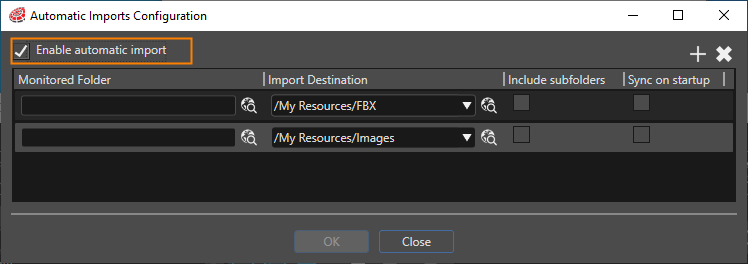
Each item in the Automatic Import Configuration dialog lets you configure Automatic Import settings.
Monitored Folder Specifies the folder that SceneComposer monitors. Import Destination Specifies the destination folder for imported files. Include subfolders Specifies if SceneComposer should monitor files in the subfolders of the selected Monitored Folder. Sync on startup Specifies if SceneComposer should automatically sync the selected Monitored Folder when this solution is opened.
If Sync on startup is enabled, the Automatic Import prompt appears when the solution is opened, allowing you to confirm the import before it proceeds.
SceneComposer synchronizes monitored folders in the following two cases:
- You enable Sync on startup in the Automatic Imports Configuration dialog, but SceneComposer has not synchronized monitored folders during solution startup.
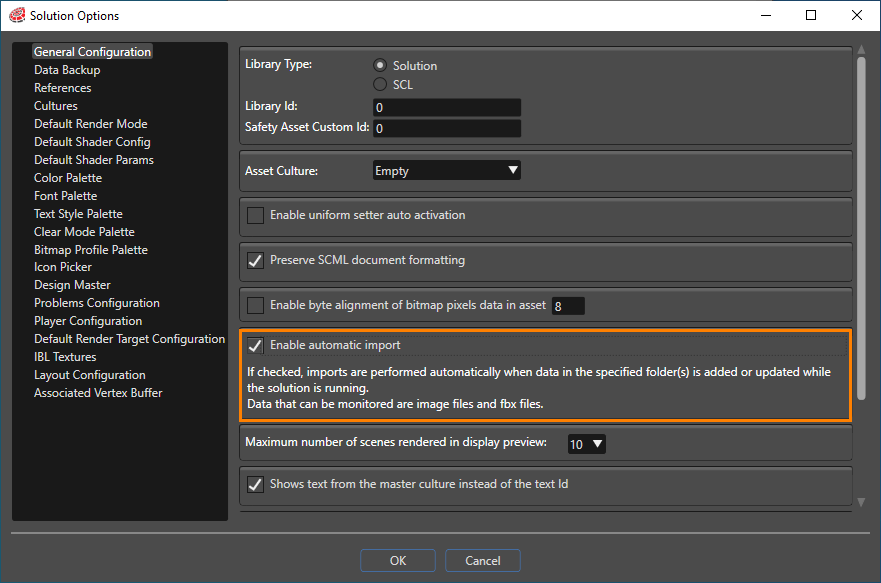
- You change Sync on startup from disabled to enabled. - Open the Solution Options dialog by selecting File > Solution Options... in the menu. In the General Configuration section, check the Enable automatic import box.
When the folder contents change, SceneComposer notifies you that imports are pending, offering the following import options:
- Import with preview changes: SceneComposer opens the Import Images dialog granting you full control over the import process.
- Import without preview changes: SceneComposer imports the files without any further user interaction necessary.
Scene Composer saves the configured paths for each solution in
USER_DIR\ AppData\Roaming\SceneComposer\Solutions\
-
When you convert a solution to another version or migrate it to another platform, the Automatic Imports configuration will not be preserved.
As a best practice, consider configuring the monitored folders so that they contain either
- only image files or
- only FBX files and images required by these FBX files.
The reason for this is, if the modified files on disk include an FBX file, SceneComposer performs only an FBX import and does not import modified image files that are not required by the FBX file.