Image Update
Image Update
This feature allows importingyou wholeto foldersupdate ofan entire folder including all subfolders and images insteadin a single operation rather tan updating individual image files separately. Using Image Update, SceneComposer preserves the folder hierarchy of only images. After importing, the imported folder and theapplies subfoldersit haveto the sameSolution structureFolder defined in the solution as the source folders that were used for import.solution.
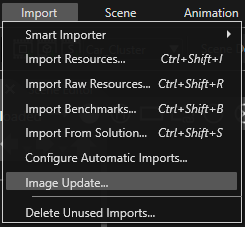
OpenSelect "Import > Image Update"Update... dialog viain the menu to updateopen the images.Image Update dialog.

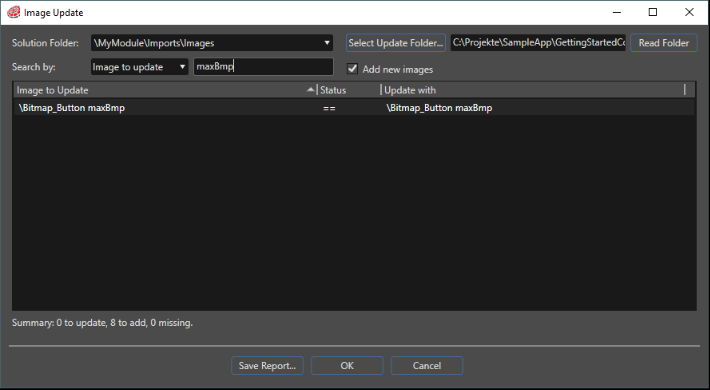
In the "Image Update"Update dialogdialog's Solution Folder drop down menu, select the solution'ssolution folder containing the images you want to beupdate. updatedClick canSelect beUpdate selectedFolder..., usingthen select the "Solution Folder" dropdown-menu. The folder that contains the replacement images to update the ones in the solution with can be selected using the "Select Update Folder..." button. By clicking on the "Read Folder" button, the selected folder and itsclick subfoldersOK. areSceneComposer recursivelyshows scanned for images to import. Aa warning is shown in caseif the folder is empty or does not contain any images.
TheClick Read Folder to scan the selected folder and its subfolders recursively for images to import. This may take several minutes for large amounts of images. The result of this scan is displayed in a table directly below.
You can befilter searchedthe byimages differentdisplayed criteriain selectablethe table. Select a search criterion from the "Search by"by dropdown-menu.drop-down Themenu optionsto thatspecify arethe selectablecolumn to search. Then, enter a search string in the dropdown-menutext correspondfield to the columnright. headersSceneComposer ofdisplays theall tablematching below it in which the names of the images are shown. If a text is inserted in the textfield (the search is case-insensitive) to the right of the dropdown-menu, the according search result found in the column defined by the value in the dropdown-menu is shown.results.
The availablefollowing options are available in the "Search by" dropdown-menu are:by:
- Image to
update:update:theTheimageimage's relative path in thesolutionSceneComposerthat is to be updated
solution.
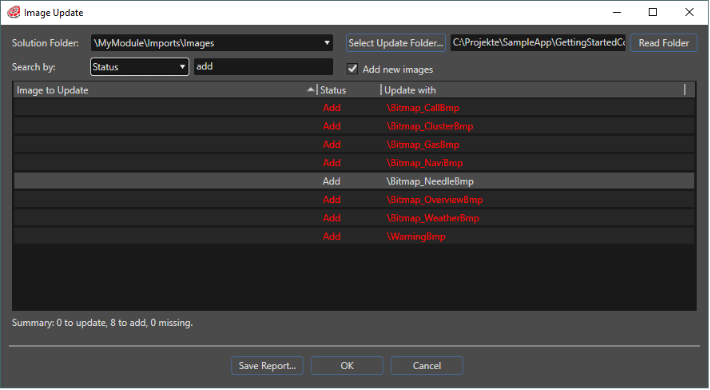
Status:Status:theThe status of theimages
image.
- Update
with:with: The image's relative path on theimagesstorageto update the solution with
device.
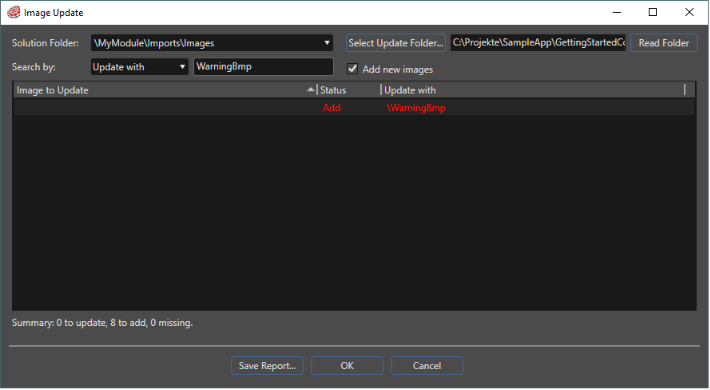
TheCheck checkbox "Add new images"images selectsto ifadd newly found images to the solution. Clear Add new images to update only existing images should be updated or newfound ones should be added to the solution as well.images.

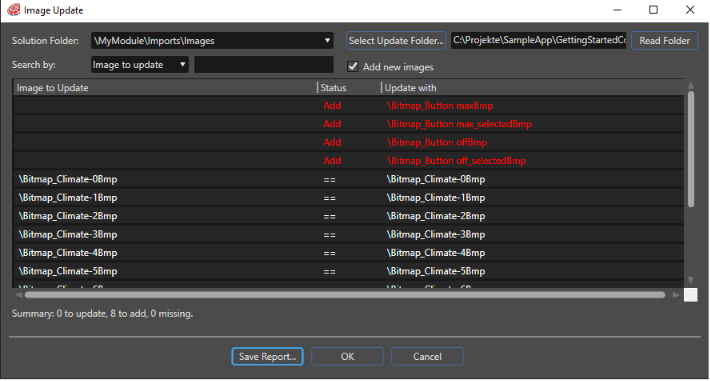
TheClick contentSave ofReport... to save the image comparison canresults beas saveda incomma-separated CSVvalues (CommaCSV) Separatedfile. Values) format by clickingIn the "Save Report..." button. A "Save Image Update Report"Report dialog appears which allows selectingspecify the file name and the location offor the CSV file.report.
If the folder used to update the solution withfolder contains lessfewer images than the solutionsolution, itself,SceneComposer updates only the images found in the selected folder. Images that are not found in that folder are updated.listed Theas otherMissing images are shown in the report as "Missing images" and are not changed.
by the update process.
Summary of the update process
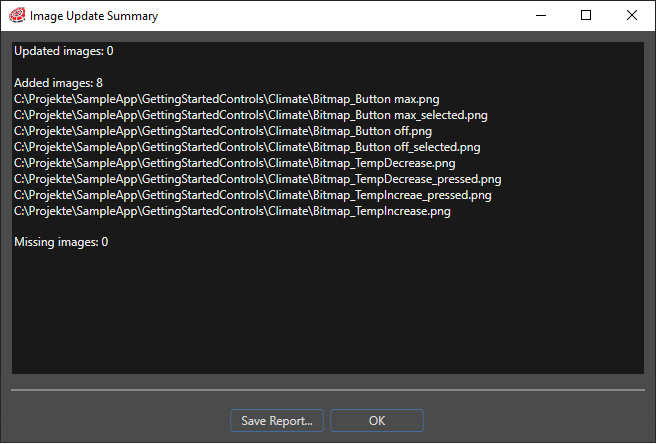
After updating the images,images have been updated, SceneComposer displays a summary is opened showing the performed actions. The content of the summaryactions can be savedperformed in CSV (Comma Separated Values) format by clicking the "Image Update Summary dialog. Click Save Report..." button.to Asave "this summary as a comma-separated values (CSV) file. In the Save Image Update Summary"Summary Report dialog appears which allows selectingspecify the file name and the location offor thethis CSV file.report.