
Import from Solution
AImport From Solution is a powerful option tofor importimporting different elementsitems from a specific solution previous created in SceneComposerSceneComposer.
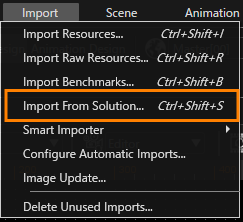
Select "Import > Import from Solution".Solution Thisin optionthe can be accessed from Import menu.menubar.

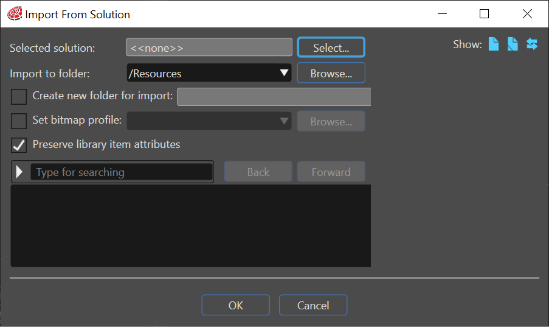
The "Import fromFrom Solution"Solution paneldialog givesguides you through the possibility to follow a successionsteps of three logical steps in order to import specific elements from a chosen solution.

Using the "Import from Solution"
The first step consists in selecting a desired solution from which the user needs to import some elements. Choose an existed folder were the desired elements from a selected solution will be imported or create a new folder for import Select someimporting specific elements from a selected solution.
Using Import From Solution

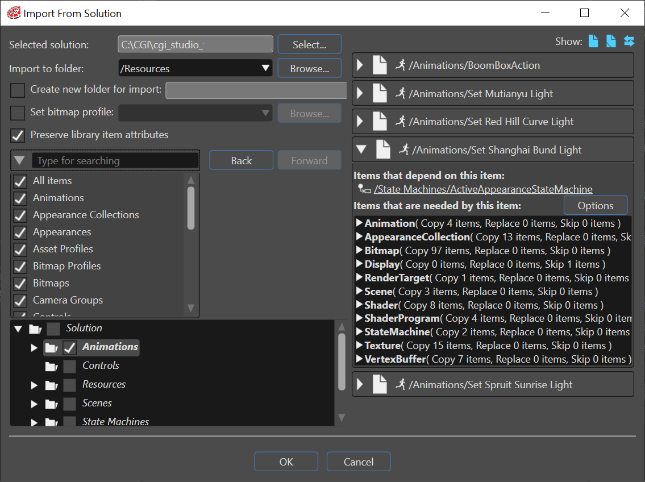
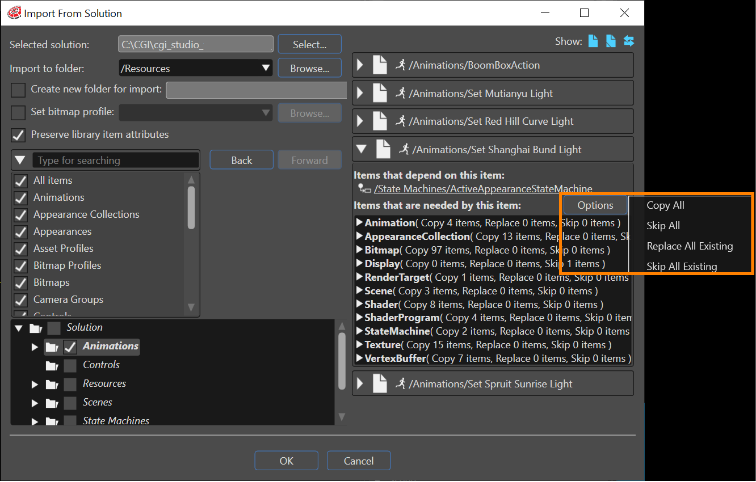
If for a selected elementitem there arehas dependent items, athis special Options button will become available. This buttoninformation is placeddisplayed aboveon the right side ofwithin the screenitem wherelist. allNext to the items arewith shown.dependencies, SceneComposer provides an Options button.
- Copy all
- Skip all
- Replace all existing
- Skip all existing

For everyeach categoryimported-item ofcategory, importedyou items it is possible tocan see theirits relationship withto existing imported items: New,New, Existing and Conflict.Conflict.

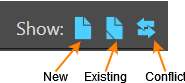
By selectingSelect one or manymore fromShow theseoptions "Show" options, the user canto see the new items, the existing items or the conflicts between newnewly imported items and previouspreviously imported items. If there are different existing (\=) items, another "Existing"Existing button will becomebecomes available. ByClick usingExisting itto aopen "CompareImportItemsView"the Compare Items dialog willand be opened to showview the existing items.

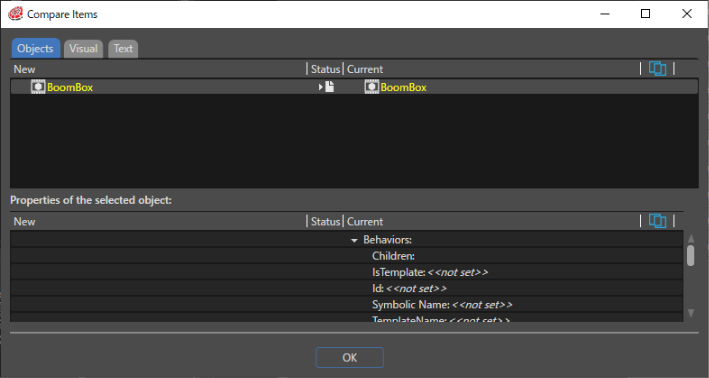
TheClick "Show only differences"differences button allows the user to see justonly the differences between selected items. The comparisonYou can beuse usedthe comparison in different modes. For instance,example, if the imported items are shaders, theyyou can beview seenthem in three different modes: Objects,Objects, Visual and Text.Text.
|
|
|
|
|


If there are conflicts between itemsthe aitems, "Conflict"Conflict buttonbecomes willavailable. becomeClick availIConflict waable.to By pressing itopen the "Compare Items"Items dialog will be opened and show all the existing conflicts will be shown.conflicts.

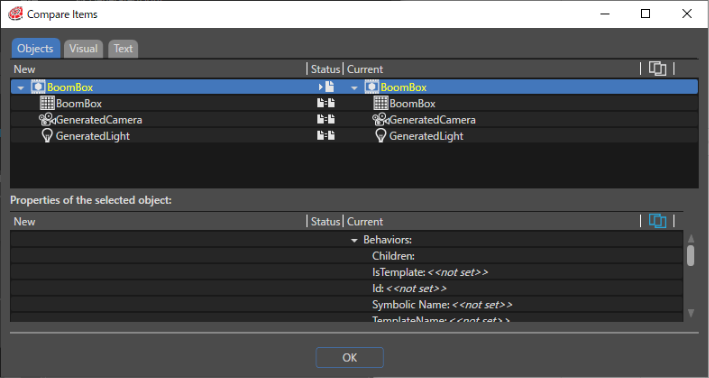
The status'status signs showindicate the nature of everyeach conflict. IfWhen theyou "click Show only differences" button is pressed,differences, the dialoguedialog willshows only show the conflicts. IfWhen you click the button isagain, released,the dialog shows all theitems. itemsWhen willyou be shown. Ifselect a conflictconflict, isthe selected,dialog shows all the properties and their differences will be shown.differences.