
Import Raw Resources
You canTo import any type of raw resourceresource, byselect selecting [ Import > Import Raw Resources... ] from the menu bar.

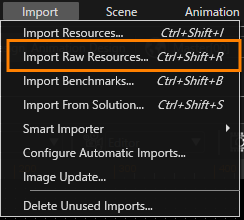
-
ItYouis possible tocan import raw resources in SceneComposer by dragging themononto"the SolutionExplorer"Explorer panel.
In the "Import"Import dialogRaw Resources dialog, click the "Select Files..." buttonbutton. andSceneComposer opens the Open File dialog. In this dialog, select one or more raw resources to importimport, then click OK.
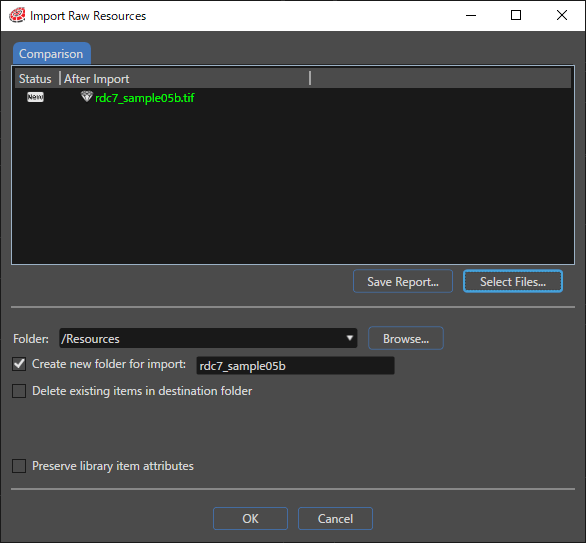
Click Save Report... to save the content of the Comparison tab in CSV (Comma Separated Values) format. In the "Open"Save FileAs dialog.dialog, enter a name and select the location for the CSV file.

For a description of the Import Raw Resources dialog's checkboxes, refer to Import Dialog Options.
CompareTo compare new content with already imported resources byresources, right-clicking onclick a raw resource, to open the "Compare Properties"Properties dialog.
Problems: Import Conflicts
InSceneComposer's theProblems "Problems"panel panel,lists potential import conflicts are listed.conflicts.
ImportDependency conflictserrors mightoccur appearduring import if ayou raw resource has been imported and already used previously. A conflict will occur when new raw resources are imported incheck the same folder and the "Delete existing items in destination folder"folder ischeckbox checked.and this destination folder contains items that are used in the solution.
The content of this tab can be saved in CSV (Comma Separated Values) format by clicking the "Save Report..." button. A "Save As" file dialog appears which allows selecting the name and the location of the CSV file.