Create Nodes
Create Nodes from Toolbox
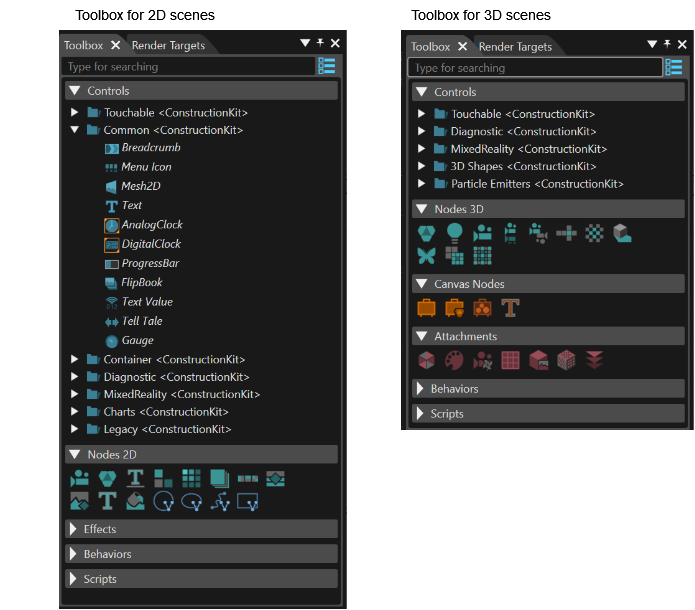
You can create new nodes by dragging items from the Toolbox and dropping them into the following locations:
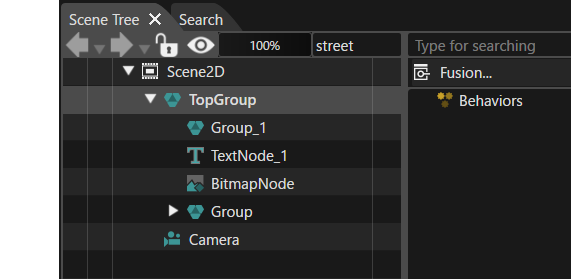
- Scene Tree - Inserts the node into the desired position within the scene graph hierarchy.
- Scene Editor (Render View) - Creates the node at the specific display coordinates where it is dropped.
When adding a node to the scene tree, keep the following behaviors in mind:
- Default Placement
The new node is created as the last child of the node onto which the node is dropped. - Repositioning
You can drag and drop nodes within the scene tree to modify the hierarchy. While dragging, a blue selection line indicates whether the node will be placed as child of another node or between two existing nodes.
Create Nodes from Imports
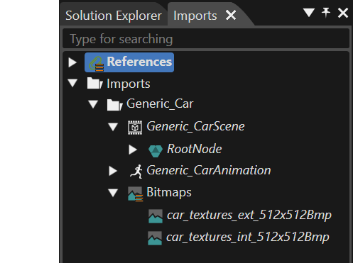
You can create nodes by dragging items from user-defined imports (template scene nodes) and dropping them into Scene Editor or the Scene Tree.
Creating Nodes in Scene Editor
Drag a template scene node from the Imports panel and drop it into the Scene Editor to create an instance of that node at the drop location. The new scene node is created at the top level of the scene graph.
Creating Nodes in the Scene Tree
Alternatively, you can drag a template scene node from Imports and drop it directly into the Scene Tree. This allows you to place the new node within the desired position of the scene graph hierarchy.
-
When dropping Bitmaps from Imports into either the Scene Tree or the Scene Editor, a RenderNode2D is created automatically. This node is initialized with a BitmapBrushBlend effect that references the selected bitmap.