
Context Menu
When you right-click an item in Solution Explorer, a context menu appears according to the type of the selected item. This page summarizes the display condition and role of each menu item.
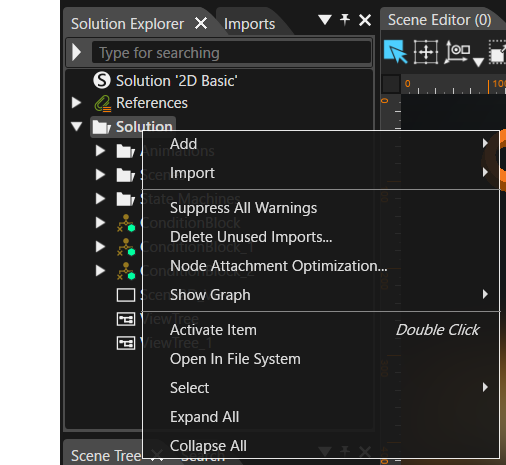
| Item | Description |
|---|---|
| Open In File System |
Always appears, regardless of the type of the selected item. Opens the storage location of the selected item in Windows Explorer. Use it, for example, to check the location of the original image file of a resource. |
| Suppress All Warnings |
Appears for almost all items except the root solution name. Hides all Problems related to the selected item. When you select a folder, the Problems of its child objects are also hidden together (errors are not affected). See: Problems Browser |
| Show Graph |
Appears for most items except the root solution name and the References node. Displays the dependencies and references of the selected item in the Graph Dependency panel. |
| Activate Item |
Appears for almost all items except the root solution name. Activates the selected item (the same operation as double-clicking). |
| Add |
Appears when you select a folder. Creates a new item (such as a new scene, clear mode, or bitmap profile) under the selected folder. See: Create a New Scene |
| Import |
Appears when you select a folder. Opens the Import Resources dialog and imports files into the selected folder. |
| Delete Unused Imports... |
Appears when you select a folder. Lists the imports that are not used in the solution and deletes the ones you select to clean up the solution. See: Manage Imports |
| Node Attachment Optimization... |
Appears when you select a folder. Starts the Node Attachment Optimization wizard and optimizes the entire solution or a specific location. See: Node Attachments |
| Update Solution Icon... |
Appears when you select the root solution name (at the top of the tree). Sets the current Scene Composer screen as the solution icon. The setting takes effect after you restart Scene Composer. |
| Add Reference... |
Appears when you select the References node. Selects an SCL (Shared Component Library) solution and imports its contents into another solution as a reference. |
| Add Scene From Template... |
Appears when you select an imported scene or a template scene. Creates a new scene using the selected scene as a template. See: Create a New Scene |
| Add State Machine... |
Appears when you select a scene or a node in the Scene Tree. Adds a State Machine to the selected target. |
| Render In Display |
Appears when you select a scene, camera, render target, or display object. Enables or disables the display of a camera on the display (for example, to enable or disable all cameras in a scene together). |
| Add Camera To Render Target... |
Appears when you select a render target. Adds a camera to the selected render target. |
| Set As Default Render Target |
Appears when you select a render target. Sets the selected render target as the default render target of the solution. |
| Add this Animation to Animation Group(s)... |
Appears when you select an animation. Adds the selected existing animation to an animation group. |
| Save as Template... |
Appears when you select an animation. Saves the selected animation as a template so that you can reuse it. |
| Interpolation |
Appears when you select an animation. Sets the interpolation method of the animation (such as easing). See: Interpolation |
| Type of Values |
Appears when you select an animation. Sets the type of animation values (such as absolute or relative values). See: Type of Values |
| Clone... |
Appears when you select an item or subfolder that can be cloned (it does not appear for the top-level Solution folder, the root solution name, or the References node). Creates a copy of the selected item in the same folder. The clone is automatically numbered, and you can also specify how many copies to create. |
| Copy |
Appears when you select an item that can be copied. Copies the selected item to the clipboard. See: Manage Nodes |
| Cut |
Appears when you select an item that can be moved. Cuts the selected item (use it to move the item to another location). See: Manage Nodes |
| Delete |
Appears when you select an item that can be deleted. Deletes the selected item. If the item is used by other items, the Delete Items dialog opens, where you select how to handle it. |
| Rename |
Appears when you select an item that can be renamed. Renames the selected item. If an item with the same name exists in the same location, a warning appears. |
| Lock |
Appears when you select an item other than a folder. Locks the selected item to prevent unintended changes. A locked item is marked with an icon that indicates the locked state. See: Locking UI Elements |
| Find |
Appears when you select an item that has references, such as a scene or an animation. Searches for the widgets that reference the selected item, or the nodes that the selected item references. See: Searching |
| Go to Scml |
Appears when you select a scene, node, render target, animation, or similar item. Moves to the element in the SCML that corresponds to the selected item. See: SCML Editor |
| Select |
Appears when you select an item that has child elements (such as a folder or the References node). Selects the leaf nodes, child nodes, or all child elements together. See: Manage Nodes |
| Expand All |
Appears when you select an item that has child elements. Expands the entire tree under the selected item. See: Manage Nodes |
| Collapse All |
Appears when you select an item that has child elements. Collapses the entire tree under the selected item. See: Manage Nodes |
| Source Control > Update |
Appears for solutions under source control (SVN). Gets the latest version of the solution from the repository. |
| Source Control > Revert |
Appears for solutions under source control (SVN). Reverts all changes you made since the last update. |
| Source Control > Lock / Unlock |
Appears for solutions under source control (SVN). Locks the solution so that you are the only one who can commit changes. To release the lock, select Unlock. |
| Source Control > Commit |
Appears for solutions under source control (SVN). Uploads the changes you made to the solution to the repository. |
| Source Control > Clean Up |
Appears for solutions under source control (SVN). Restores the working copy to a consistent state when it becomes inconsistent, for example because of a server problem. |
| Source Control > Resolve Conflict |
Used when a conflict occurs in a solution under source control (SVN). Resolves a file conflict (you select a method such as Mine or Theirs). |
| Source Control > Resolved Conflicts |
Used when a conflict occurs in a solution under source control (SVN). Lists the conflicts that have occurred and marks them as resolved. |