
Docs Agent Panel
The Docs Agent panel is an assistant panel where you can ask questions about the content of the CGI Studio product documentation. You can ask your questions directly in Scene Composer while you work, without opening the product documentation separately. The panel references the same documents and uses the same answer generation mechanism as Docs Agent in the product documentation.
To distinguish it from the Docs Agent feature in OfflineDoc, this documentation refers to this panel as the Docs Agent panel.
The Docs Agent panel communicates with the AI service through Candera Operator. For the settings, see Preferences > AI Service.
Displaying the Panel
By default, the Docs Agent panel appears as a tab in the same panel group as Scene Tree and Search. As with any other panel, you can resize it, undock it, and move it to another position.
If you close the panel, you can display it again from View > Docs Agent on the menu bar.
Panel Layout
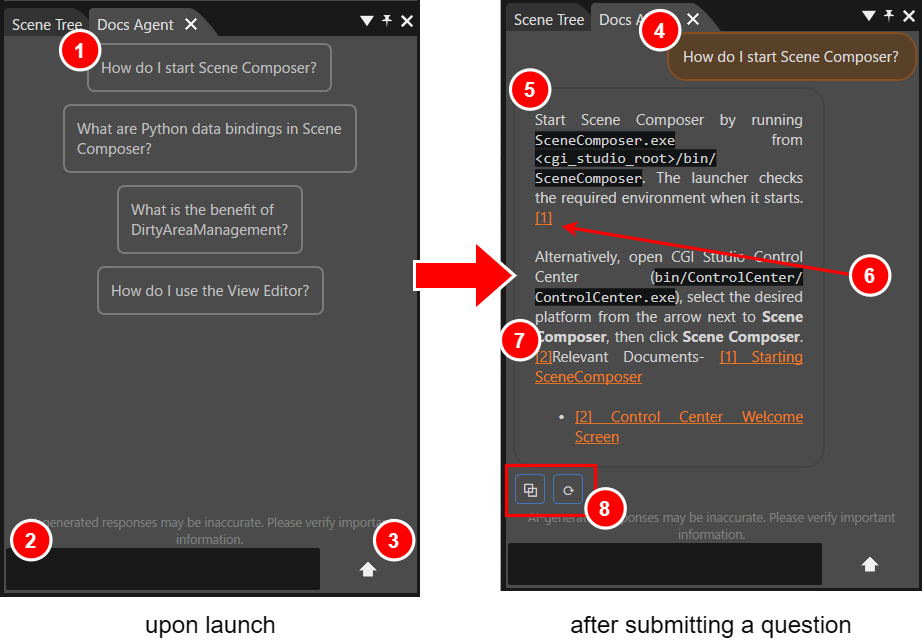
[1] that appears in the answer text. When you click it, the source page opens.
7
Relevant Documents
At the end of the answer, the panel lists as links the pages that it referenced to generate the answer.
8
Action buttons
Appear below the answer. They are hidden by default, and appear when you hold the pointer over the answer. You can copy the content of the answer and clear the chat history.
Basic Operations
Accepting the Privacy Policy
The first time you use the Docs Agent panel, the panel asks you to accept the Privacy Policy. You cannot enter a question until you accept it.
Asking a Question
Copying an Answer and Clearing the Chat History
When you hold the pointer below an answer, the action buttons appear. You can copy the content of the answer to the clipboard, and you can clear the chat history.
Opening the Source Page
When you click a reference number in the answer text or a link under Relevant Documents, the offline product documentation opens at the corresponding page. If the offline product documentation is already open, Scene Composer closes it and then reopens it at that page. The display language follows the display language setting of Scene Composer.
If you ask about support, the panel returns links to the contact form on the Candera website and to the Lighthouse forum.
Important Notes
Answers that the AI generates might contain inaccurate or misleading content. For important information, open the source page from a link under Relevant Documents and verify the content.
Troubleshooting
If the Docs Agent panel shows Client could not connect. in a red error box, Scene Composer cannot connect to Candera Operator. Open File > Preferences from the menu bar, go to Environment > AI Service, and check the settings and the connection.