
View Tree
View Tree is the editor for arranging View in the solution as a tree and composing screen transition logic based on that structure. When you define transition relationships between Views on the tree, that information is exported as the Global State Machine at asset generation and becomes available as destination candidates for the JumpToView action behavior.
When you set a parent–child relationship between Views, the child View is activated in sync when the parent View becomes active, allowing you to manage groups of screen elements that should always be shown together. In addition, by associating an Action Chain created in the Action Chain Editor with each View, you can define that View’s event logic and conditional transitions.
View Tree panel UI
The View Tree panel is hidden by default. To show the panel, do either of the following:
-
Select View > View Editor > View Tree from the toolbar menu.
-
In Solution Explorer, double-click an existing View Tree.

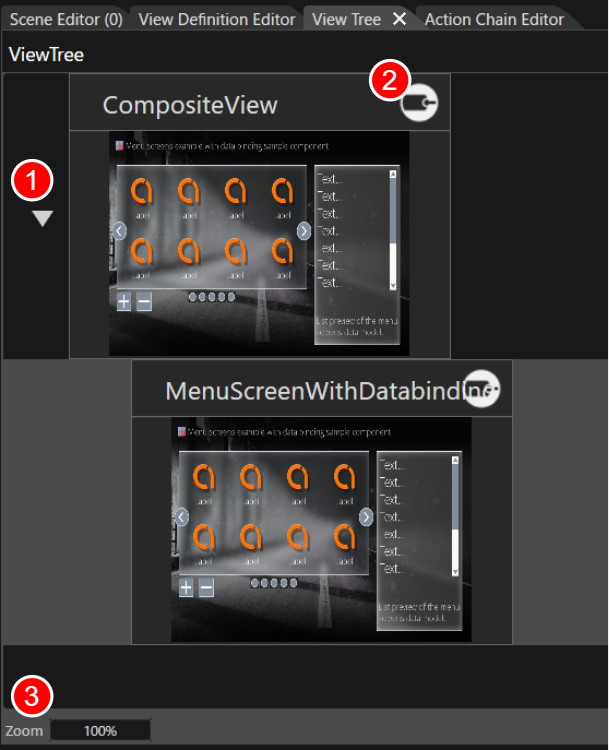
| 1 | ||
| 2 |
|
Enlarges or reduces the thumbnail display inside the View hasTree.
In Views. Clickaddition to toggleclicking, you can also enter a value directly in the visibilityZoom ofdisplay area or use the childmouse Views.wheel on the panel to enlarge or reduce the display (this behavior is common to other SceneComposer editors).
Basic operations
Create a new View Tree
Follow these steps to create a new View Tree:
-
In Solution Explorer, open the context menu at the desired location.
-
Choose Add > New Item.
-
The Add New Item dialog opens.
-
-
In the
dialog’sleftpane,menu of the dialog window, select View Tree,thenand click the OK.button.- View
TheandvalueView Tree in the left menu of the dialog appear with distinct icons, so youentercan visually distinguish between them before selecting.
- View
- The name set in Name becomes the name of the new View
Tree’s name. -
A new View Tree is created in the Solution
ExplorerExplorer. - In the Solution Explorer, a View Tree appears with a dedicated icon distinct from that of a View.
Double-When you double-click the newly created View Tree to launchTree, the ConditionView Editor.
Tree panel is selected.
For the View Tree you created, you can use the standard operations in Solution Explorer to copy, duplicate, delete, and rename it.
Place Views
Drag and drop Views that you have defined beforehand in the View Definition Editor are configured by dragging & dropping them onto the View Tree panel. Depending on how you place them, the structural relationships between Views and their display behavior will differ.
Vertical placement:
DroppingIf ontoyou drop a blankView into an empty area ofbelow an existing View, it is placed as a View at the same hierarchy level. In this case, each View Treeis panelcontrolled placesindependently and does not affect the Viewsothers.
Parent-child sideplacement: byIf sideyou (asdrop peers).
DroppingView onto an existing View places the dropped View as that View’s child.
Whenitself, a parent–parent-child relationship is setestablished. betweenThis Views,relationship provides the following structural and behavioral benefits.
Effect
Description Show parent and childIn this way, placement in the View Tree directly defines the mechanism for display control and event propagation—it is not merely a visual arrangement. It is important to design the optimal placement relationship based on each View’s purpose and when it should be used.
Configuring in Action Chain Editor
For each View placed on the View Tree, youYou can configure its event logic in the Action Chain Editor. Youfor caneach View placed in the View Tree. To launch the Action Chain EditorEditor, inperform eitherone of the following ways:operations.
Double-click the
Viewtargetyou want to configure.Select the target View and
chooseselect Open Action Chain Editor from the context menu.
A status indicator appears on the View Tree panel for any ViewTreeItem that has an Action Chain or an OnEntry / OnExit behavior assigned. This lets you tell which View has logic configured just by looking at the panel. The indicator updates automatically according to the behavior's configuration status.
Exported as a Global State Machine
The informationView youhierarchy buildand ontransition logic configured in the View Tree (relationshipspanel between Views and their transition logic) isare exported as a Global State Machine when assetsgenerating assets. As a result, at application runtime, each View’s visibility state and transition behavior are generated.
In addition, screen transitions.
In this way, the View Tree and the Action Chain Editor work together as an integrated mechanism that governs both screen composition and behavioral control.