
Referencing external resource
External resources can be referenced and drawn on the scene editor. The File > Set External Resource Path... menu described on this page is available only when Scene Composer is launched on the Android platform.
External images can also be referenced without this menu. By specifying a relative path directly in the ExternalResourceId property of the External Bitmap Provider or Set External Bitmap behavior, external images (PNG/JPG) can be referenced and drawn on all platforms through the FileSystem resource manager. For details, see External Image Behaviour.
Resource Reference Menu
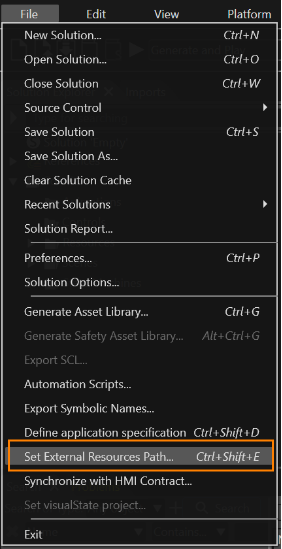
Use Set External Resource Path... in the menu bar under File to browse external resources. This menu is grayed out and not selectable for Scene Composer on non-Android platforms.
Referable external resource file formats are \*.bmp, \*.jpg, \*.jpeg, \*.gif, \*.tga, \*.png, \*.dds, \*.hdr, and \*.exr.
Basic Usage
- Run Scene Composer and open a new or existing solution file.
- From the File menu in the menu bar, select Set External Resource Path....
- The ExternalResourceContainerPlugin dialog will appear.
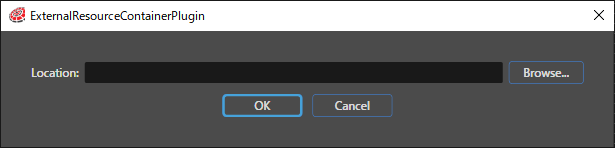
- Click the Browse... button in the dialog to select the external resource folder to be referenced.
- Select the Android Studio project folder.
The behaviors External Bitmap Provider, Set External Bitmap, and Check External Resource Change are used to display external resources. These behaviors support both the Android and FileSystem resource managers. For details on each behavior and its usage, see External Resource ; for referencing from the file system using relative paths, see External Image Behaviour.