
Easy Mode
Overview
Easy Mode provides a configurable interface for managing the properties of individual elements. It allows you to hide unused properties in the properties panel, helping streamline workflows when working with a large set of attributes. In addition, Easy Mode supports exporting and importing custom property-configuration files, enabling each user (such as designers or developers) to apply the configuration that best fits their role or workflow.
This feature was implemented in CGI Studio 3.12 and earlier as a function to generate Easy Mode configuration files using the "SceneComposerConfigurator.exe" file. From CGI Studio 3.13 onward, this has been updated to make it easier than ever to set Easy Mode from "Preferences" in Scene Composer.
Target Elements
The following element types support property customization in Easy Mode:
- Behavior
- Effect
- Node(Node 2D, Node 3D)
Customizable Items
The following property aspects can be configured in Easy Mode:.
- Visibility - Specify whether a property is shown or hidden in the properties panel.
- Read-only - Define whether a property can be edited by the user.
- Initial Value - Set the default value applied to the property when an element is created.
The set of customizable property options varies depending on the specific property.
Customizing properties
- Open the Preferences dialog by selecting File > Preferences... from the menu bar.
- In Preferences dialog, navigate to Environment > Easy Mode.
- Choose any element and customize its properties by adjusting any of the following options:
- Visibility
- Read-only
- Initial Value
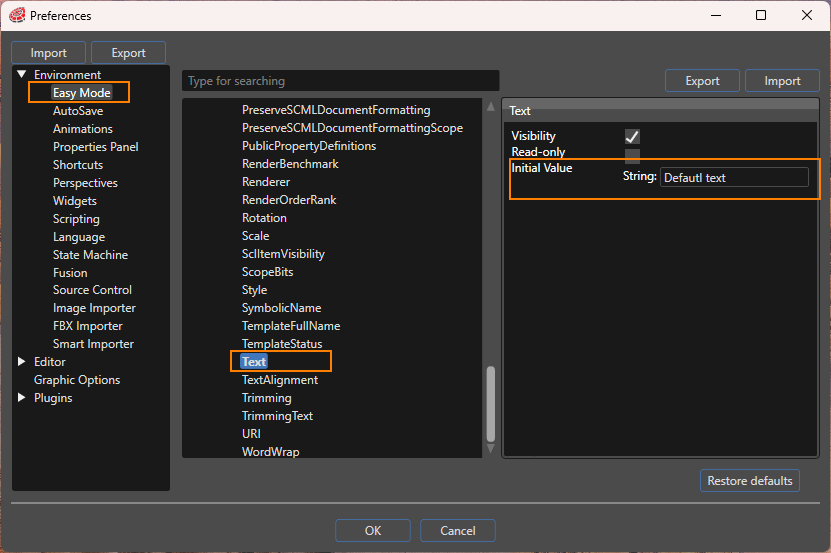
The image above shows how to set the initial value of TextNode2D's Text property to "Default text".
Export and Import
- Export
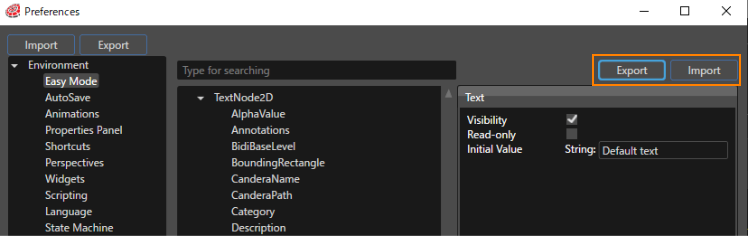
The property configurations defined in the Preferences dialog can be exported as an XML file. To export the current Easy Mode settings, click the Export button located in the upper-right corner of the Preferences dialog (see image below). - Import
To import a previously exported XML configuration file click the Import button in the upper-right corner of the Preferences dialog.
Restore defaults
Clicking the Restore defaults button in the lower-right corner of the Preferences dialog resets all previously customized properties to their original default settings.
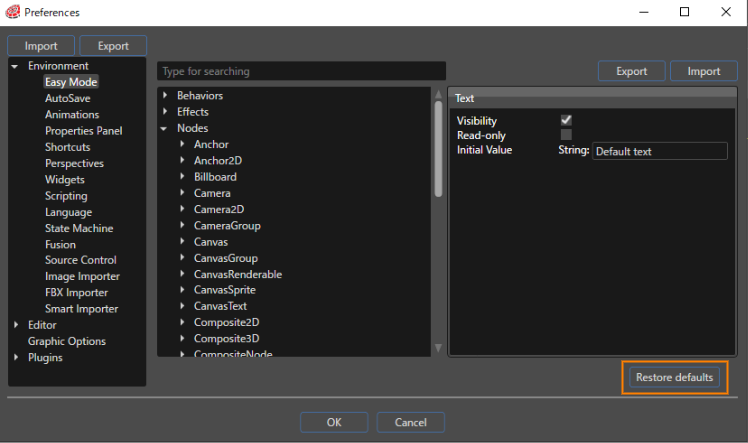
Clicking Restore defaults button will revert all property settings for all elements back to their default values.
Use this function with caution, as all customized configurations will be lost.