
View Definition Editor
View Definition Editor lets you define “screen-level Views” by combining Scenes created in SceneComposer with existing Views, and make those definitions available to the View Tree, the State Machine, and the Action Chain Editor.
Only Views are displayedappear as nodes in the tree of the View Definition Editor panel. Therefore,A ifScene with IsView=true can be referenced as a View on its own, so when you want to usecompose a Scene,screen from a single Scene, you mustcan alwaysplace includethat itScene directly as a componentView. ofWhen oneyou ofwant theto build a screen that bundles multiple display elements, create a Composite View and combine Scenes with IsView=true or other Views. as its components. For details, see View composition later in this document. With this structure, the state machine can consistently treat “which screen (View) to activate” at the View level, while still incorporating Scene-based content into the screen composition.
View Definition Editor UI
Panel layout
Double-click any View in Solution Explorer to open the View Definition Editor panel.

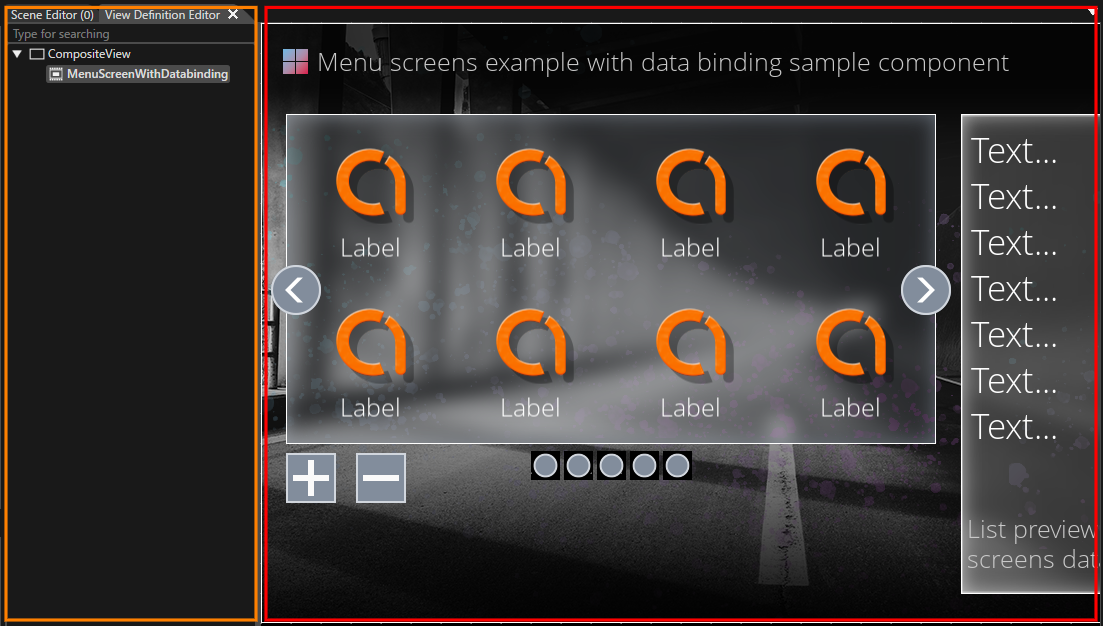
| UI item | Description |
|---|---|
|
View Composition pane (orange frame in the figure above) |
Lists which Scenes/Views the selected View is composed of. Add or remove Scenes and existing Views by drag and drop. |
|
Preview area (red frame in the figure above) |
Displays preview images of the Scenes/Views associated with the View in the right pane, where you can also adjust their layout positions. Useful for improving visual identification when referencing this View from the State Machine or View Tree. |
Basic operations
This section outlines common procedures for defining and editing Views with the View Definition Editor.
For instructions on creating a View, see the View feature overview page.
View composition
In the View Definition Editor panel, you can use the tree structure to edit or delete child Views under the currently opened View. You can also review the entire tree rooted at that View on the tree, including the hierarchical relationships of its child Views and their descendant Views.
The composition editing described here applies to Views that were created as newComposite Views.Views. Views that were automatically generated from aA Scene arewith IsView=true is treated as simplea Viewsstandalone thatsingle-screen displayView, the corresponding Scene, andso you cannot edit theits tree structure or add child elements in the View Definition Editor or attach child Views or additional Scenes under them.
Behavior whenWhen draggingYou Drag and droppingDrop a Scene with IsView=true
Only Views are shownappear as nodes in the tree of the View Definition Editor panel. IfHowever, because a Scene with IsView=true is treated as a View on its own, you want to work with a Scene, youcan add it asdirectly internalto contentthe of an existing View.tree.
- When you drag and drop a Scene with IsView=true from the Solution Explorer
intoonto theCompositioncomposition pane of the Composite Viewcurrentlyopen in the View Definition Editor, theCreate Viewdialog appears if thereScene isno existing View that already has that Scene as its child.
With this mechanism, the View Definition Editor tree can consistently treat the unit of screen transitions and visibility control as Views, while still allowing you to build Scene-based content within those Views.
Grandchild View
In the View Definition Editor panel, a single operation can add Views only up to the"a child View directlyone underlevel below the currentlyView openyou Viewhave (one hierarchy level down).opened." To createbuild a structurestructures with three or more hierarchylevels levels,— such as Parentparent View > Childchild View > Grandchildgrandchild View — start from a Composite View, you(a must use only ViewsView that meetbundles themultiple following requirements as the starting point:Views).
- Place
TheCompositeViewViewsyou want to use asat the parentlevelandmustintermediatebelevelsa(becausenewlytheycreatedareViewnot leaf nodes, they can hold child Views beneath them). The View you want to use as the parent level mustnotalready have aA Scene with IsView=trueasisitsalwayschild element.
Views that were automatically generated from a Scene, or Views that already have a Scenetreated as a child,leaf node and cannot be used as thean startingintermediate pointnode for buildingin a grandchild hierarchy (these Views are always treated as leaf nodes).
Using a View that meets these requirements as the starting point, create a three-level structure (Parent View > Child View > Grandchild View) as follows:
-
Open the View you want to use as the parent level, and add a child View under it (Parent View > Child View).
-
Double-click the View you added as the child View in step 1 to open it, and then add another View under it as its child (Child View > Grandchild View).
After performing these steps, reopen the original parent View. You can then confirm in the tree that a three-level hierarchy (Parent View > Child View > Grandchild View) is displayed.