
The example file of Figma
This section describes how to use the instrument cluster as a Figma design file. The example file is stored in the following location.
<root>/cgi_studio_content/2D/Figma/AI_Cluster_Sample.fig
Due to technical limitations, Scene Composer cannot open Figma design files directly. For this reason, the first step is to import them into your personal Figma account.
- Log in to your Figma account.
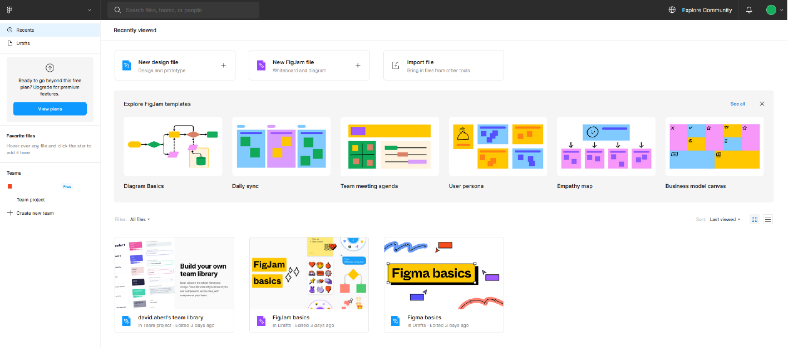
- In your Figma account, click Import Files and load the AI_Cluster_Sample.fig file.
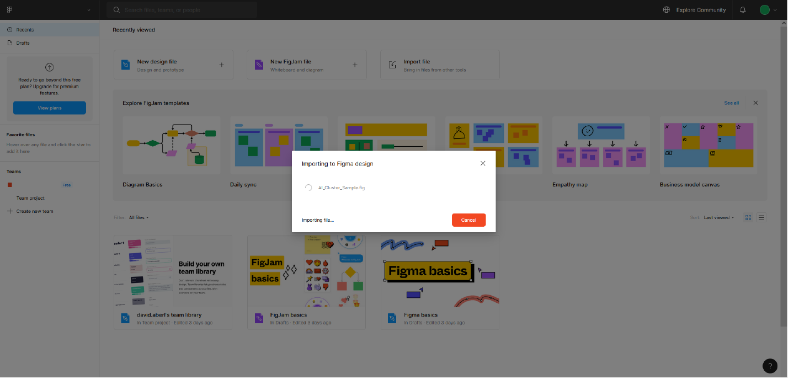
- Figma uploads the AI_Cluster_Sample.fig file to your account.
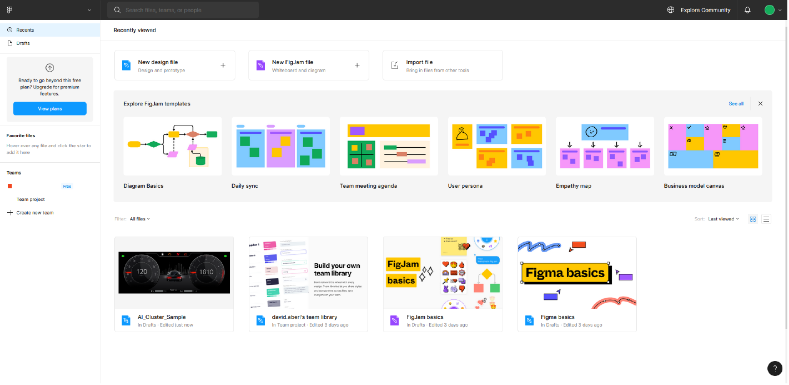
- After Figma uploads the file, AI_Cluster_Sample appears in your file list.
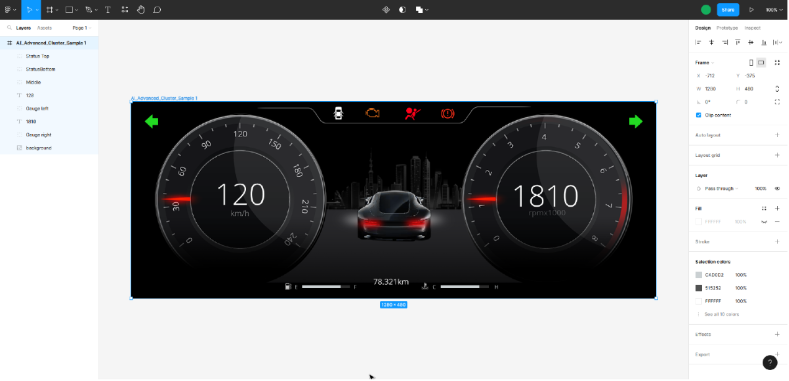
To import this sample file using the Smart Importer, select Import > Smart Importer > Import from Cloud Resource... from the menu and follow the import instructions. See Figma import instructions for more information.